
You’re setting up a new Matter device. You open your app, scan the QR code — and then something interrupts you. Maybe you get a call, the app crashes, or your phone loses connection. You come back and get hit with: “Pairing window expired” or “Commissioning failed.”
This is one of the most common and frustrating Matter setup errors — and it happens to almost everyone at some point. The good news: it’s always fixable. This guide explains exactly why the Matter pairing window expires and walks you through the fix for every major brand and platform.
💡 Quick Answer
Matter pairing window expired? Here’s the 3-step fix:
- Factory reset your Matter device (brand-specific steps below)
- Stay close to your router and keep the app open
- Re-scan the QR code in your smart home app and complete setup without interruption
Scroll down for brand-by-brand reset steps and platform-specific re-commissioning guides.
What Is the Matter Pairing (Commissioning) Window?
When a Matter device is first powered on (or after a factory reset), it enters a special state called the commissioning window. During this window, the device actively broadcasts a Bluetooth Low Energy (BLE) signal and waits for a compatible smart home app to connect and complete the pairing process.
According to the Matter protocol specification, this commissioning window is intentionally limited — typically 15 to 30 minutes depending on the device manufacturer. After that timer runs out, the device stops advertising and closes the window to prevent unauthorized pairing.
This is actually a security feature, not a bug. If the pairing window stayed open indefinitely, anyone nearby could attempt to commission your device to their own smart home system.
Why Does the Pairing Window Expire Mid-Setup?
The pairing window can expire or fail for several common reasons:
- You were interrupted — phone call, app crash, or distraction during setup
- Slow or unstable Wi-Fi — the setup process stalled trying to connect
- Phone Bluetooth was off or weak — initial BLE commissioning failed silently
- VPN was active — VPNs are known to block Matter’s mDNS traffic
- App update in the background — the app refreshed and lost state mid-process
- Device too far from router or hub — Wi-Fi or Thread signal was marginal
- Multiple smart home apps open — competing commissioning attempts confused the device
How to Identify a Pairing Window Expiry Error
Different platforms show this error in different ways. Here’s what you’ll typically see:
| Platform | Error Message |
|---|---|
| Apple Home | “Accessory Not Found” or “Could not connect to accessory” |
| Google Home | “Something went wrong” or “Device not found” |
| Amazon Alexa | “Device not responding” or “Setup failed” |
| Home Assistant | “Commissioning failed” or “BLE device not found” |
The key indicator is: the device was previously responsive during setup, but now the app can’t find it even though the device is powered on. If the device LED is not blinking or showing a pairing mode indicator, the commissioning window has closed and you’ll need to factory reset it.
Step 1: Factory Reset Your Matter Device
A factory reset is required to reopen the commissioning window. The reset process clears all previous pairing data and restarts the device in fresh setup mode. Here are the reset procedures for every major Matter brand:
| Brand | Device Type | Factory Reset Method | LED Indicator |
|---|---|---|---|
| Aqara | Hub M2/M3, sensors | Hold reset button for 5 seconds until LED flashes rapidly, OR in Aqara Home app: Device Settings > Reset Device | Rapid flashing blue/yellow |
| Eve | Door/Window, Energy, Motion | Press the button 3 times rapidly within 3 seconds; OR Eve app: Device > Reset | LED flashes to confirm |
| Nanoleaf | Essentials bulbs, light strips | Bulbs: Power on/off 5 times in 5 seconds. Strips: Hold controller button 10 seconds | Bulb pulses white, then restarts |
| TP-Link Tapo | Smart plugs, sensors, cameras | Hold reset button 5 seconds; OR Tapo app: Device Settings > Remove Device | Orange/green flashing alternation |
| SwitchBot | Hub 2, sensors, curtain | Long press reset button for 10 seconds; OR SwitchBot app: Device Settings > Delete Device | LED flashes 3 times |
| IKEA | Dirigera hub, Trådfri bulbs | Bulbs: Power off/on 6 times. Dirigera hub: Hold reset button 15 seconds | Bulb flickers; hub light resets |
| Meross | Smart plugs, garage doors, switches | Hold reset button 5 seconds until LED flashes; OR Meross app: Device > Factory Reset | Rapid amber blinking |
Step 2: Re-Commission Your Matter Device
Once your device is factory reset and showing the pairing indicator (usually a blinking LED), follow these platform-specific steps to complete setup. You have the full commissioning window from this point.
🏠 Apple Home (iPhone / iPad)
- Open the Home app on your iPhone or iPad
- Tap the + icon (top right) > Add Accessory
- Hold your iPhone camera over the Matter QR code on the device or packaging
- Follow the on-screen prompts to name and assign the device to a room
- Wait for the “Accessory Added” confirmation — do not switch apps during this step
👁️ Google Home (Android / iPhone)
- Open the Google Home app
- Tap + > Set up device > New device
- Select your home and tap Next
- The app will search for nearby devices — or tap Scan QR code to scan manually
- Follow prompts to connect to Wi-Fi and assign a room
🔴 Amazon Alexa
- Open the Alexa app > tap Devices > + (top right)
- Tap Add Device > select your device type
- Choose Matter when prompted about connectivity
- Scan the QR code or enter the 11-digit numeric code printed on the device
- Follow prompts to complete Wi-Fi connection and naming
🏠 Home Assistant
- Go to Settings > Devices & Services
- Click + Add Integration > search for Matter (HACS) or the native Matter integration
- Click Add Device and scan the QR code or enter the pairing code
- Ensure your Home Assistant instance has a functioning Thread Border Router if setting up Thread-based devices
- Monitor the HA logs if commissioning fails — BLE must be available on your HA host
Pro Tips: How to Prevent Pairing Window Expiry
Prevention is easier than the fix. Based on verified community reports and Matter specification documentation, these tips reliably prevent pairing window issues:
- ✅ Turn off VPN before setup — VPNs block mDNS traffic which Matter relies on
- ✅ Keep Bluetooth ON — initial commissioning uses BLE, even for Wi-Fi devices
- ✅ Stay within 10 feet of your router — weak signal causes mid-setup timeouts
- ✅ Close all other smart home apps — competing apps can claim the commissioning window
- ✅ Don’t lock your phone during setup — screen sleep interrupts the BLE connection
- ✅ Avoid 5GHz band steering — Matter devices only support 2.4GHz; set up on a 2.4GHz-only SSID if possible
- ✅ Update your hub firmware first — outdated hub firmware is a common cause of commissioning failures
- ✅ Don’t open the app until the device is ready — wait for the pairing LED to start blinking before scanning
Still Failing? Advanced Troubleshooting
If you’ve factory reset and tried re-commissioning multiple times without success, try these additional steps:
- Enable IPv6 on your router — Matter requires IPv6 for local network communication. Log into your router admin panel and enable IPv6 if it’s disabled.
- Check mDNS / multicast settings — If you use VLANs or a managed network, ensure mDNS traffic is passing between your IoT and main network segments.
- Use a Thread Border Router — For Thread-based Matter devices (many sensors and locks), you need a compatible Thread Border Router like the Apple TV 4K, HomePod mini, or an Aqara Hub M3.
- Try a different phone or tablet — Some older Android phones have BLE compatibility issues with Matter.
- Update device firmware — Some devices require a firmware update via the manufacturer’s native app before they can be commissioned to a third-party platform.
Recommended Products for Easier Matter Setup
If you find yourself frequently running into commissioning issues, a dedicated Matter hub can significantly simplify the process. These hubs act as a local commissioning controller and Thread Border Router, making setup faster and more reliable for all your Matter smart home devices.
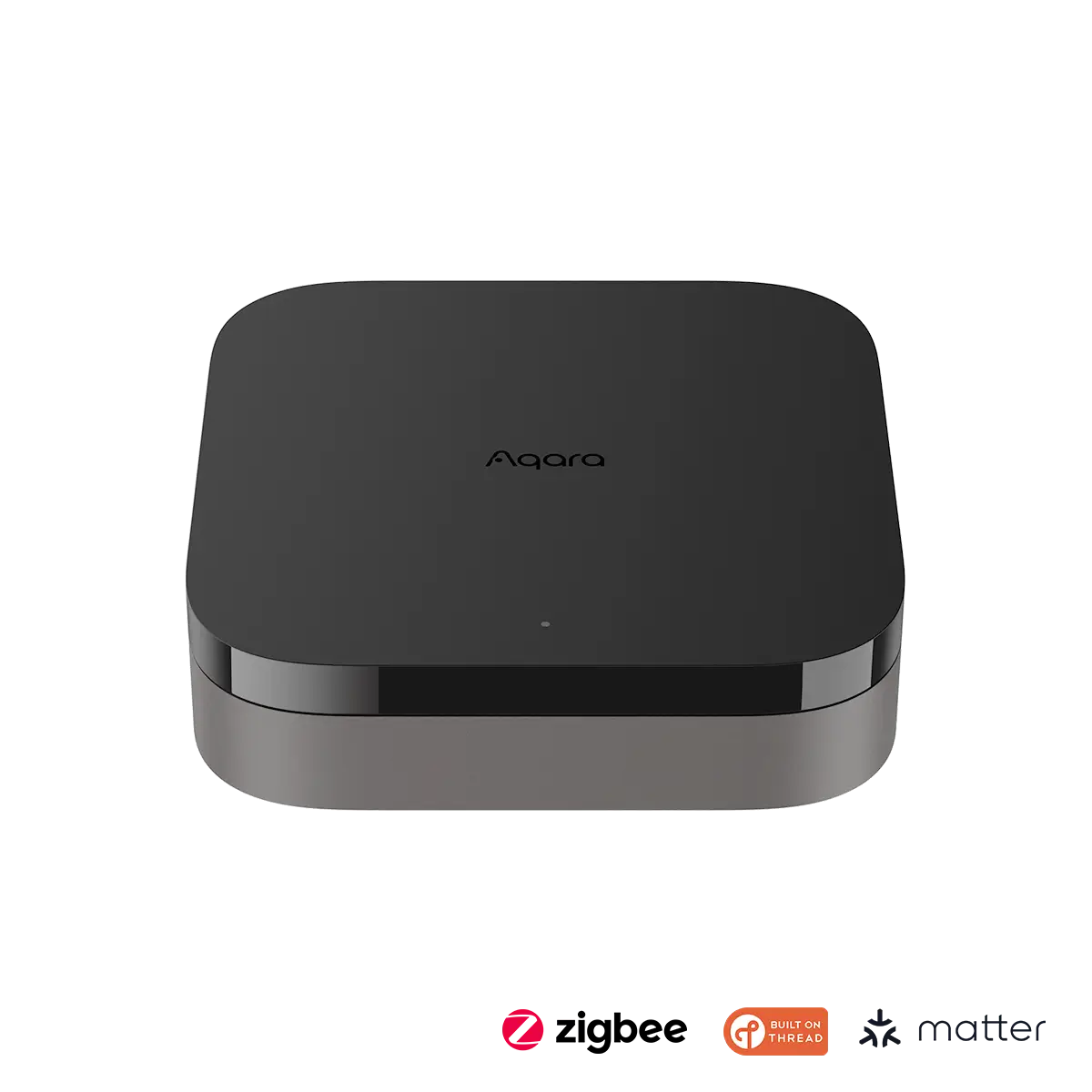
Aqara Hub M3
The Aqara Hub M3 is one of the best Matter-compatible smart home hubs for reliable device commissioning. It includes a built-in Thread Border Router, Zigbee support, and works with Apple Home, Google Home, Alexa, and Home Assistant — making it an ideal central controller for your Matter ecosystem.
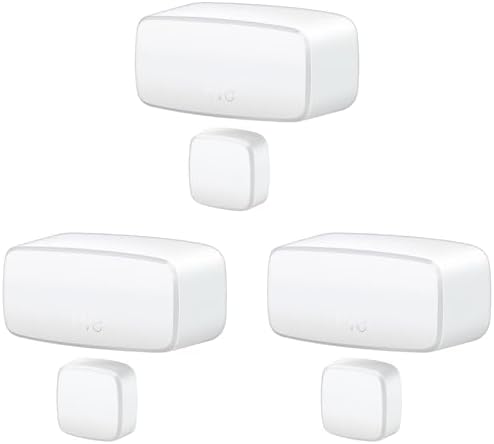
Eve Door & Window Sensor
If you’re looking for a Matter device with a notably smooth commissioning experience, the Eve Door & Window sensor is an excellent choice. Eve has excellent Matter implementation, and their devices are among the easiest to factory reset and re-commission when needed. Great for getting started with Matter.
📑 Related Articles
- What Is Matter Protocol? Complete Guide to Smart Home Security
- Best Matter-Compatible Smart Home Hubs 2026
- Best Matter Starter Kits 2026: Easiest Ways to Get Started
- Best Matter Smart Sensors 2026: Door, Motion & Water Leak Sensors Reviewed
- Aqara Camera Hub G350 Review 2026: Full Matter Ecosystem Test