
⚡ Quick Verdict
The “Firmware Update Required Before Pairing” error means your Matter device or hub needs an OTA (over-the-air) software update before it can complete the Matter commissioning handshake. In most cases, the fix takes under 10 minutes.
- Most common cause: Device shipped with pre-release firmware that locks Matter pairing until updated
- Fastest fix: Open the manufacturer’s app, find the device, and trigger a manual firmware check
- If the app fix fails: Update your hub firmware, then factory-reset the device and retry pairing
You unboxed your new Matter device, opened your smart home app, and tapped Add Device — only to hit a wall: “Firmware update required before pairing.” Or maybe the pairing attempt just silently fails, and only after digging through app logs do you spot a firmware version mismatch.
This is one of the most frustrating Matter setup errors because the device looks fine, the hub looks fine, but something invisible is blocking the commissioning process. Based on verified user reports across Reddit, the Apple Community forums, and the SmartThings Community, this error has a handful of well-understood causes and reliable fixes.
This guide walks you through every fix in order from quickest to most thorough, so you can get your device paired without unnecessary factory resets.
- Why Firmware Blocks Matter Pairing
- Fix 1 — Trigger Firmware Update via Manufacturer App
- Fix 2 — Power-Cycle the Device After Update
- Fix 3 — Update Your Hub or Thread Border Router Firmware
- Fix 4 — Check Your Network (mDNS & IPv6)
- Fix 5 — Factory Reset the Device and Retry
- Fix 6 — Try a Different Hub or Commissioner
- Recommended Matter Hubs for Reliable Updates
Why Does Firmware Block Matter Pairing?
The Matter protocol uses a commissioning flow that requires both the device and the controller (your hub or phone) to speak the same protocol version. When a mismatch exists, the commissioning handshake fails at the attestation stage — and the app surfaces it as a firmware error.
There are three root causes seen most often in user reports:
- Device shipped with factory-test firmware — Some manufacturers ship devices with internal pre-production firmware. Matter commissioning is deliberately blocked on these builds until an OTA update is applied via the manufacturer’s own app. Aqara, Eve, and some SwitchBot devices have exhibited this behavior.
- Hub firmware is too old — Matter 1.2 and 1.3 introduced new device types (energy monitoring plugs, thermostats, blinds motors). If your hub is running firmware that only supports Matter 1.0 or 1.1, it will reject newer device attestation certificates.
- OTA update downloaded but not applied — Some devices download a firmware update silently but get stuck waiting for a reboot trigger. The device reports “update pending” internally, which the commissioning flow interprets as “update required.”
Fix 1 — Trigger Firmware Update via Manufacturer App
This is the correct first step for almost every device. Matter commissioning locks are designed to be released through the manufacturer’s own app, not through Apple Home, Google Home, or SmartThings. The rationale: the manufacturer’s app has device-specific OTA update logic that generic Matter commissioners lack.
Steps by platform:
- Aqara devices (Aqara Home app) — Open Aqara Home → tap the device → settings gear → Firmware Update. If an update is available, install it. Wait for the device to reboot fully (solid LED, no blinking), then attempt Matter pairing again.
- Eve devices (Eve app) — Eve devices update via Thread. Open the Eve app → select device → scroll to Software → check version. Eve devices require an active Thread network (Apple HomePod mini or Apple TV 4K as Thread Border Router) to receive OTA updates.
- SwitchBot devices (SwitchBot app) — Open SwitchBot app → tap device → settings → Firmware & Battery → check for update.
- Nanoleaf devices (Nanoleaf app) — Open Nanoleaf app → hold-press device → Device Info → Firmware Update.
- TP-Link/Kasa devices (Kasa or Tapo app) — Kasa app → device settings → firmware update. Ensure device is on 2.4 GHz Wi-Fi for the update to complete.
Fix 2 — Power-Cycle the Device After Update
Even after a successful firmware update, some devices hold the previous firmware state in volatile memory until a hard power cycle forces a clean boot. According to reports in the Apple Community forums and r/HomeKit, a surprising number of “firmware update required” errors resolve immediately after a simple unplug-and-replug.
How to power-cycle correctly:
- Unplug the device from power completely (or remove batteries for battery-powered devices)
- Wait a full 30 seconds — this drains residual capacitor charge and ensures a clean boot
- Reconnect power and wait for the device to complete its startup sequence (usually 10–20 seconds)
- Attempt Matter pairing immediately while the device is in a fresh-boot state
Fix 3 — Update Your Hub or Thread Border Router Firmware
If the device firmware is current but pairing still fails, the problem is often on the hub side. Matter controllers receive protocol updates via their own firmware channels, and an outdated hub cannot commission devices that use newer Matter device types or attestation certificates.
⭐ Best for SmartThings Users: Samsung SmartThings Station

The SmartThings Station is Samsung’s flagship Matter hub and Thread Border Router. It ships with automatic firmware updates enabled, meaning your hub stays current without manual intervention. Users on the SmartThings Community forums report far fewer Matter commissioning failures compared to older SmartThings hubs, specifically because the Station’s firmware stays in sync with Matter specification updates.
How to check/update SmartThings firmware: SmartThings app → Menu → Settings → About SmartThings Hub → check firmware version. Updates are pushed automatically, but you can force a check by rebooting the hub from this menu.
Updating firmware on major hubs:
- Amazon Echo (4th Gen or later) — Echo devices update automatically overnight when idle. To force an update: Alexa app → Devices → Echo & Alexa → select device → Device Settings → Check for Software Updates. Alternatively, say “Alexa, check for software updates.”
- Apple HomePod / HomePod mini — iOS Settings → Home → tap your HomePod → Update Available (if shown). Or enable automatic updates: iOS Settings → General → Software Update → Automatic Updates.
- Google Nest Hub (2nd Gen) — Google Home app → Devices → tap Nest Hub → Settings → Device Information → check Cast firmware version. Updates are pushed automatically.
- Apple TV 4K — tvOS Settings → System → Software Updates. The Apple TV acts as a Thread Border Router; keeping tvOS current is critical for Matter + Thread device compatibility.
⭐ Best Thread Border Router: Amazon Echo (4th Gen)
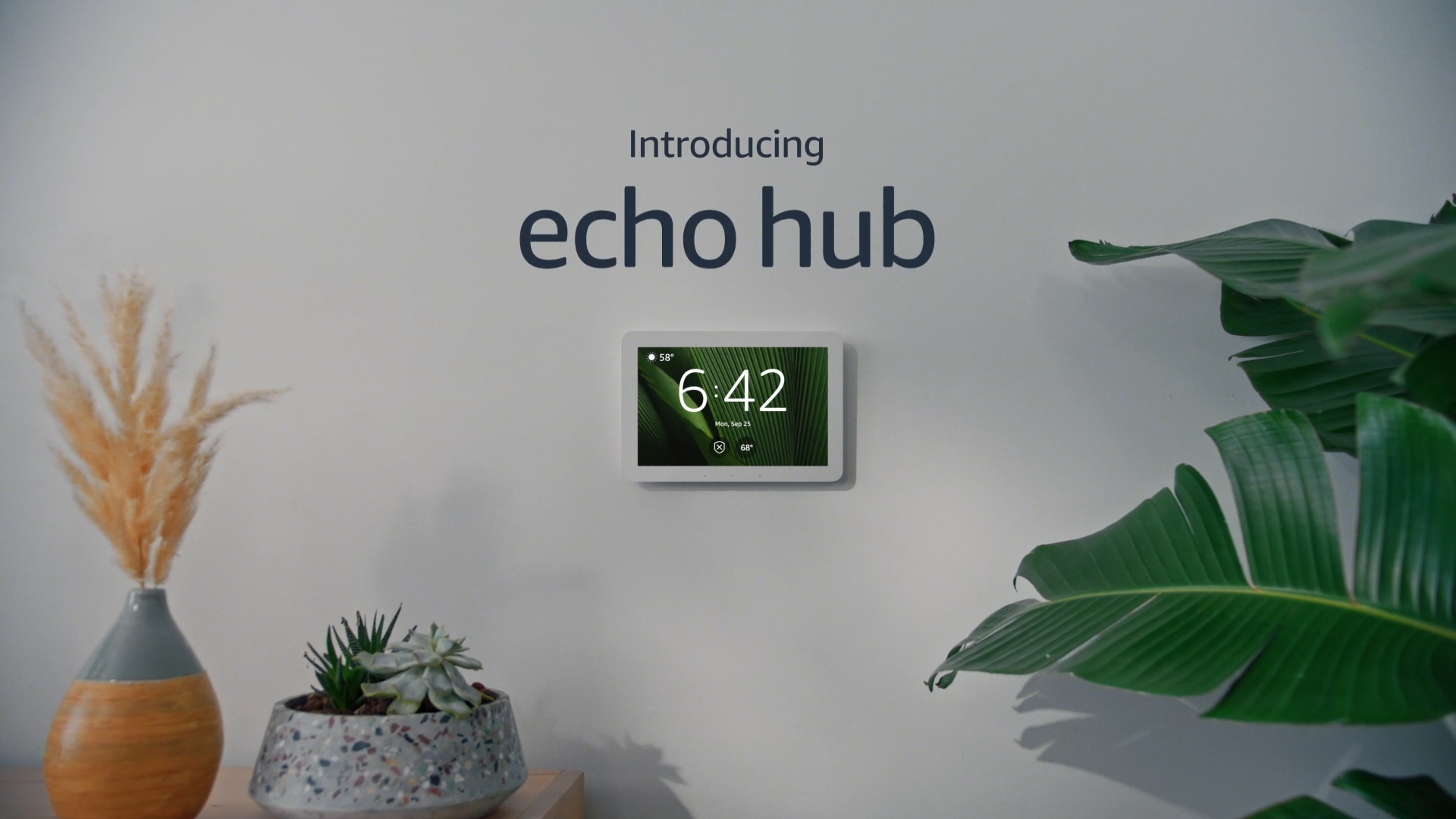
The Amazon Echo 4th Gen includes a built-in Thread Border Router and receives frequent Alexa firmware updates. For Matter devices that rely on Thread for OTA updates (particularly Eve and some Nanoleaf products), having a current Echo firmware is essential. Amazon’s update cadence for Echo hubs has been among the most reliable in the industry based on third-party monitoring reports.
Fix 4 — Check Your Network for OTA Update Blockers
OTA firmware updates require your device to reach the manufacturer’s update servers over your local network and internet connection. Certain router configurations, DNS filtering setups (like Pi-hole or NextDNS), and ISP-level firewalls can silently block OTA update traffic.
What to check:
- mDNS (UDP port 5353) — Matter uses mDNS for device discovery. If your router isolates IoT devices on a separate VLAN or enables “AP isolation,” mDNS traffic between the device and hub is blocked. Check your router’s VLAN and wireless isolation settings.
- IPv6 — Matter commissioning over Thread requires IPv6. Some routers have IPv6 disabled by default. Enable IPv6 in your router’s WAN/Internet settings, then retest pairing.
- DNS filtering (Pi-hole, NextDNS, Cloudflare Gateway) — If you run DNS-level ad blocking, temporarily disable it and retry the firmware update. OTA update CDN domains are sometimes incorrectly flagged.
- Firewall rules — Ensure outbound HTTPS (port 443) is not blocked for IoT device IP ranges. Check your router’s firewall logs for dropped packets from your device’s IP.
Fix 5 — Factory Reset the Device and Retry Pairing
If the firmware update completed but the device still won’t pair, the internal commissioning state machine may be stuck. A factory reset clears all stored pairing data and forces the device back to a clean out-of-box state, which is the state where Matter commissioning is designed to begin.
Factory reset methods by device type:
- Aqara devices — Hold the reset button (usually a pinhole on the bottom or side) for 10 seconds until the LED flashes. Release when LED starts rapid flashing.
- Eve devices — In the Eve app, select the device → settings → Factory Reset. Or hold the physical button for 10+ seconds until LED confirms reset.
- Smart plugs (most brands) — Hold the power button for 5–10 seconds until LED blinks rapidly. Check your specific device manual for exact timing.
- Smart bulbs — Many support a 5-times-on/off reset cycle: turn off, wait 2 seconds, turn on, repeat 5 times. Bulb will flash to confirm reset.
After factory reset, do not immediately open your Matter commissioner app. Wait 30 seconds for the device to complete its fresh-boot initialization, then begin the pairing flow.
Fix 6 — Try a Different Hub or Commissioner App
Matter’s multi-admin capability means you can commission a device to multiple hubs. If one hub is rejecting the device due to firmware version incompatibility, trying a different commissioner often reveals whether the problem is hub-specific or device-specific.
⭐ Best for Apple Ecosystem: Apple HomePod mini

The Apple HomePod mini is both a Thread Border Router and Matter controller. HomePod mini receives firmware updates automatically with every HomePod Software update, and Apple’s Matter implementation has historically been among the strictest — meaning if an Eve or Aqara device pairs successfully to HomePod mini, the firmware is confirmed current. Many users report using HomePod mini as a “firmware verification step” before commissioning to other hubs.
To check HomePod mini firmware: iOS Settings → Home → long-press HomePod mini → Details → Software Version.
If your primary hub is Google Home or SmartThings, try commissioning the device to Apple Home first (using an iPhone and HomePod mini as the hub). Apple’s stricter protocol adherence often forces the device to surface and resolve firmware issues that more permissive hubs quietly skip.
Similarly, if you’re having trouble pairing to Apple Home, try the Google Home app as commissioner — it handles some firmware version edge cases differently.
Recommended Matter Hubs That Stay Up-to-Date
Firmware-related pairing failures are far less common when your hub is a current-generation model with an active update schedule. Based on Matter specification update history and user reports from the SmartThings Community, Apple Developer Forums, and Home Assistant Community, these are the hubs with the strongest firmware update track records.
⭐ Best for Aqara Device Ecosystems: Aqara Hub M3
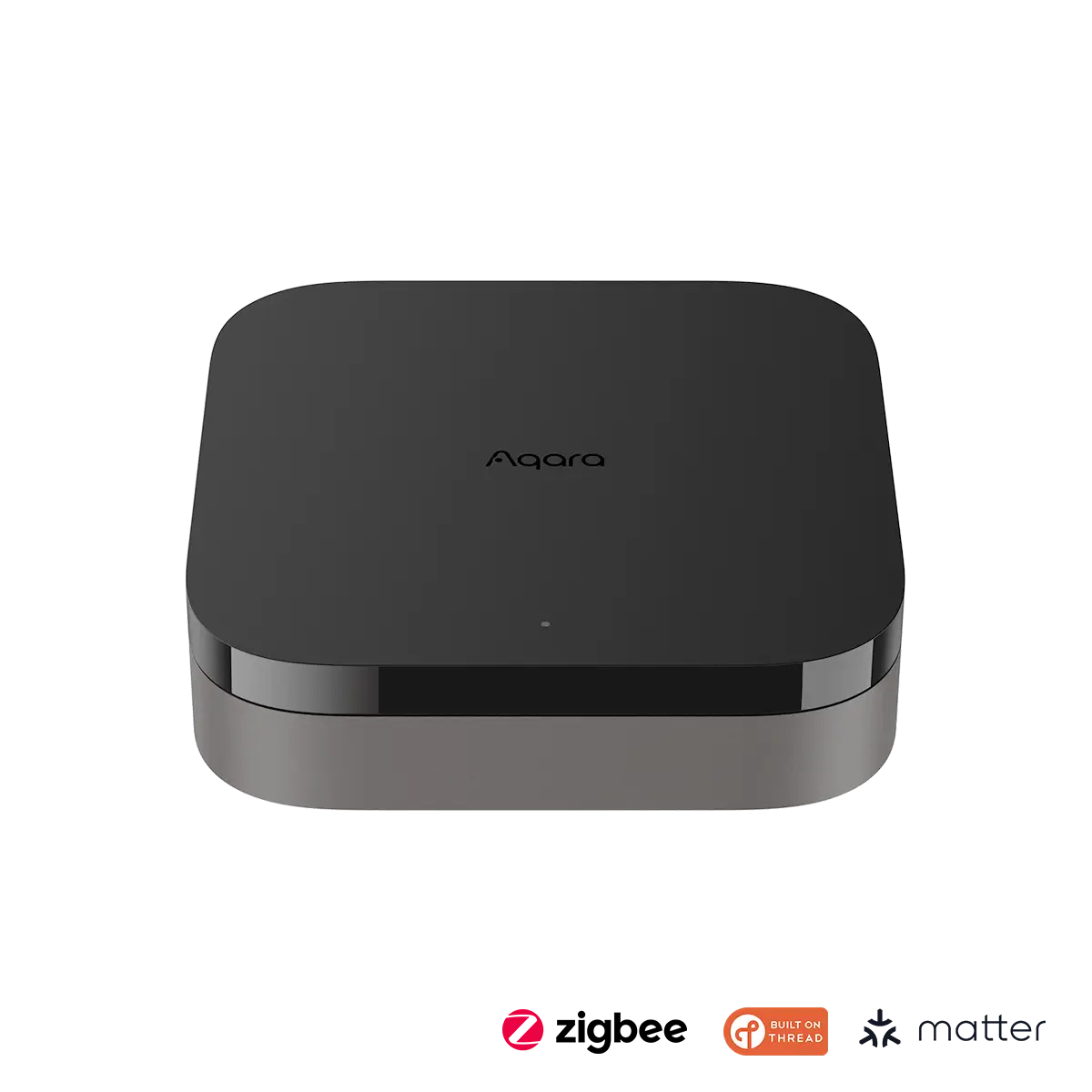
The Aqara Hub M3 is Aqara’s current flagship hub, supporting Matter, Zigbee, and Bluetooth. Critically for this guide, it acts as an OTA update intermediary for Aqara Zigbee devices transitioning to Matter — the hub pushes firmware to bridged devices before exposing them to Matter commissioners. This means Aqara devices that normally show “firmware update required” on other hubs update silently through the M3. It also works as a Thread Border Router.
For users with multiple Aqara devices experiencing firmware-related pairing failures, the Hub M3 is specifically designed to resolve this class of error.
Summary: Firmware Update Fix Checklist
Use this quick-reference checklist to work through firmware-related pairing failures systematically:
| Step | Action | Time Required |
|---|---|---|
| 1 | Trigger firmware update via manufacturer app | 2–5 min |
| 2 | Power-cycle device (30-second unplug) | 1 min |
| 3 | Update hub/controller firmware | 5–15 min |
| 4 | Check network (mDNS, IPv6, DNS filtering) | 5–10 min |
| 5 | Factory reset device, retry pairing | 3–5 min |
| 6 | Try different hub or commissioner app | 5 min |
For additional context on Matter protocol fundamentals and why commissioning errors happen, see our complete guide to the Matter protocol. For hub selection guidance, our best Matter home hubs 2026 roundup covers current-generation options with their update track records.
🔗 Related Troubleshooting Guides
- Matter Pairing Window Expired — Fix Guide — Step-by-step fix for the commissioning window timeout error
- Thread Device Joined Wrong Network — Fix Guide — How to reset Thread border router assignments and fix network conflicts
- Best Matter Home Hubs 2026 — Full roundup of current-gen hubs with firmware update ratings
- What Is Matter Protocol? — Complete guide to how Matter commissioning works