
✅ Quick Fix Checklist — Try These First
- Remove the device from your Matter app and re-pair it.
- Power off competing hubs temporarily (e.g., unplug HomePod mini while pairing with Google Home).
- Delete old Thread networks in iOS Settings › Privacy & Security › Home Data › Thread Networks.
- Enable IPv6 on your router and ensure mDNS is not blocked between VLANs.
- Update firmware on your Thread Border Router before re-pairing.
You’ve just unboxed a new Matter-over-Thread smart sensor, added it to your app — and something is off. The device is sluggish, drops offline, or your app shows a cryptic “Can’t connect to Thread network” error. You haven’t done anything wrong. Your device may have simply joined the wrong Thread network.
This is one of the most common — and most confusing — issues in modern smart home setups. If you have more than one Thread Border Router in your home (Apple TV 4K, HomePod mini, Google Nest Hub, Amazon Echo, or an Eero router), your devices can end up on different Thread meshes that don’t communicate with each other. The result: unreachable devices, failed automations, and a lot of frustration.
This guide walks you through every root cause and every fix, for every major platform.
What Is a Thread Network — and Why Do Conflicts Happen?
Thread is a low-power, self-healing mesh protocol built specifically for smart home devices. Unlike Wi-Fi or Bluetooth, Thread devices don’t connect to your router — they connect to a Thread Border Router, which bridges the Thread mesh to your home IP network.
The problem is that every major smart home hub ships with a built-in Thread Border Router:
- Apple TV 4K (3rd gen, 2022+)
- Apple HomePod mini and HomePod (2nd gen)
- Google Nest Hub (2nd gen), Nest Hub Max
- Amazon Echo (4th gen)
- Samsung SmartThings Station
- Amazon Eero Pro 6E (and later)
If you have two or more of these in your home, you have two or more Thread networks. When you commission a new Thread device, it joins whichever Thread mesh has the strongest signal at that moment — which may not be the one controlled by your target app.
Root Cause #1: Multiple Thread Border Routers Fighting
This is the most common cause. When you have both Apple Home and Google Home hubs active, they each maintain a separate Thread network with different credentials. A new device that enters range of both will join one at random during commissioning.
How to Diagnose
- Open your Matter app and check which hub the device is reported to be connected through.
- On iOS: go to Settings › Privacy & Security › Home Data › Thread Networks — if you see more than one network listed, you have competing Thread meshes.
- In Home Assistant: navigate to Settings › System › Thread to see all discovered Thread networks.
The Fix
- Decide on one primary Thread ecosystem for commissioning. If you primarily use Apple Home, unplug your Google Nest Hub during the pairing process.
- Remove the device from the app, then power it off for 30 seconds.
- With only your preferred hub active, re-pair the device.
- Once paired successfully, you can plug your other hub back in. The device will stay on the Thread network it was commissioned to.
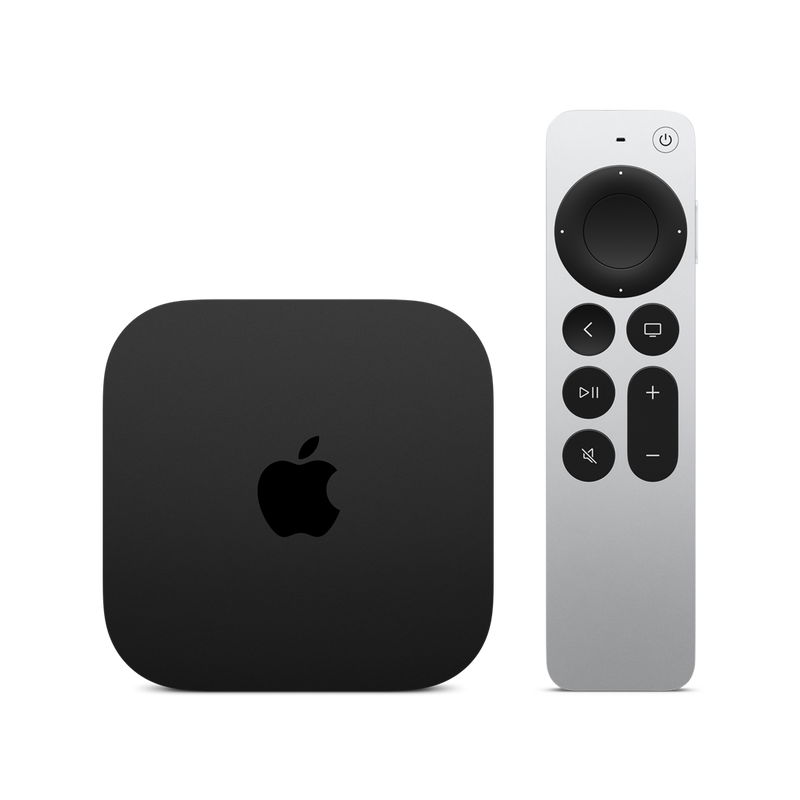
Apple TV 4K (3rd gen) acts as a Thread Border Router for Apple Home
Root Cause #2: Stale Thread Credentials Cached on Your Phone
Your smartphone stores Thread network credentials to speed up future commissioning. If you’ve ever paired a device to a different hub or swapped out a hub, your phone may still push the old Thread credentials during the pairing handshake — sending the new device to a network that no longer exists or belongs to a different ecosystem.
How to Fix on iPhone / iOS
- Go to Settings › Privacy & Security › Home Data.
- Tap Thread Networks.
- Delete any networks you don’t recognize or that belong to removed hubs.
- Re-pair the device fresh.
How to Fix on Android
- Open the Google Home app.
- Go to Settings › Home Settings.
- Look for Thread Network information under your home.
- Factory reset the problematic device and re-commission it.
Root Cause #3: Ghost Thread Network From a Removed Hub
You removed an old HomePod mini or Google Nest Hub months ago, but its Thread network credentials are still cached on your devices and your phone. New devices you commission can still attempt to join this “ghost” Thread network — and fail silently.

HomePod mini maintains its own Thread network — always remove it properly from the Home app before retiring it
The Fix
- Always remove hubs properly through their respective app before physically unplugging them. This cleans up Thread network associations.
- On iOS, revisit Settings › Privacy & Security › Home Data › Thread Networks and delete orphaned networks.
- Factory reset any Thread devices that were on the ghost network, then re-pair them to your active hub.
Root Cause #4: Router or Network Configuration Blocking Thread
Thread Border Routers use IPv6 and mDNS (Multicast DNS) to communicate across your network. If either is blocked or misconfigured on your router, devices may appear to join a Thread network but fail to communicate with your hub — or end up routed incorrectly.
Common Router Issues
- IPv6 disabled — Many consumer routers ship with IPv6 off by default. Thread requires IPv6 for proper operation.
- mDNS blocked between VLANs — If your smart home devices are on an IoT VLAN and your hub is on your main LAN, mDNS packets need to be forwarded between segments.
- IGMP snooping misconfigured — Can block multicast traffic that Thread/Matter relies on.
- AP Isolation enabled — Prevents devices on the same Wi-Fi from communicating (mainly a Wi-Fi issue, but affects Border Router connectivity).
The Fix
- Enable IPv6 in your router admin panel (usually under WAN or Internet settings).
- If using VLANs, configure mDNS forwarding between your IoT VLAN and main LAN (tools: Avahi daemon, or router-native mDNS repeater).
- Disable AP Isolation if enabled.
- Set IGMP Snooping to “compatible” mode rather than strict.
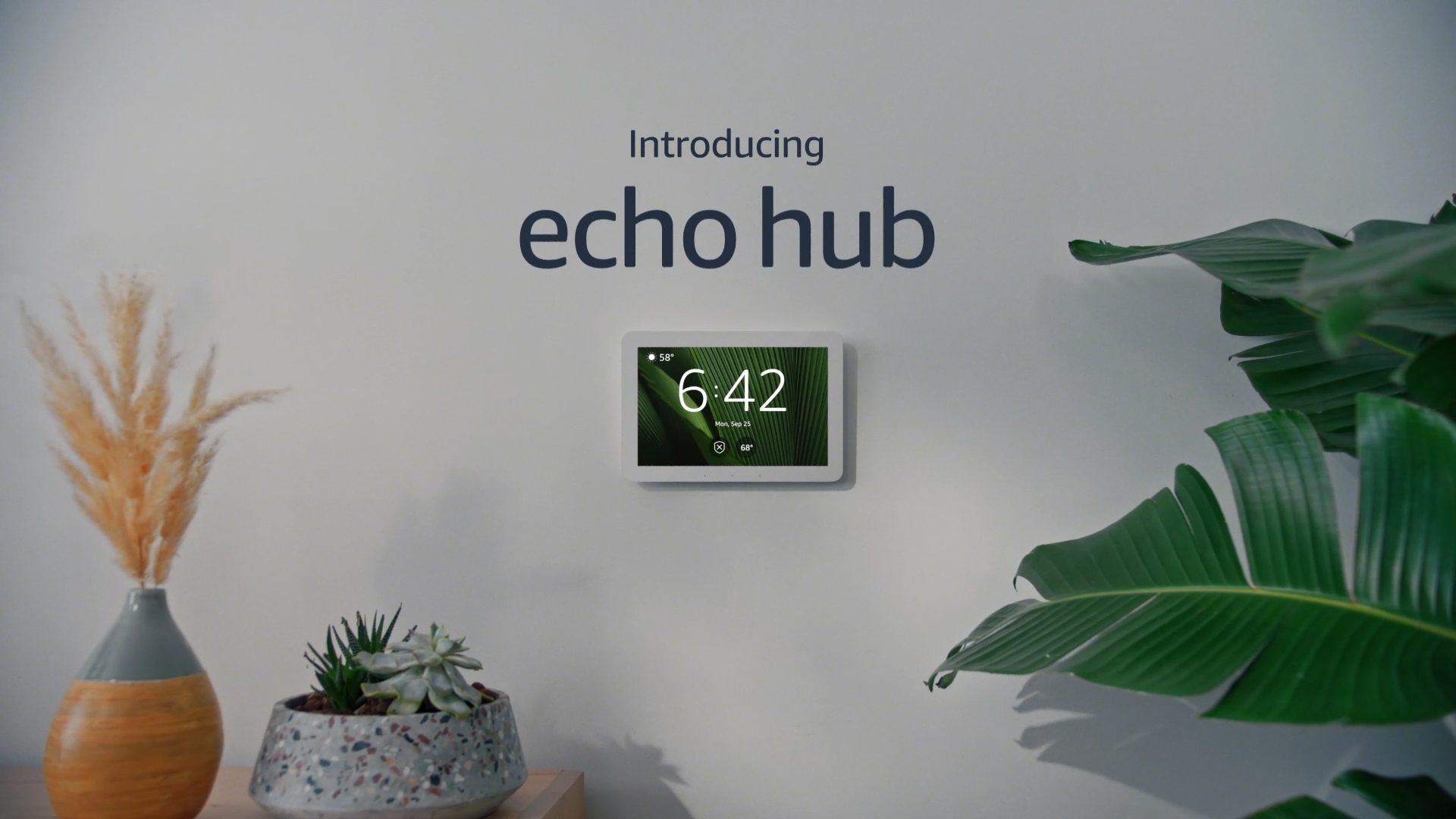
Amazon Echo (4th gen) includes a Thread Border Router — ensure your router isn’t blocking its IPv6 traffic
Platform-Specific Fixes
Apple Home
- Open the Home app › tap your home name › Home Settings.
- Scroll to Thread Network — you should see all active Apple Thread Border Routers listed.
- To remove a device from an incorrect Thread network: delete it from the Home app, then factory reset the device using its button (usually hold 10 seconds).
- Re-pair while standing physically close to your preferred Apple Border Router.
- Check iOS Settings › Privacy & Security › Home Data › Thread Networks and remove stale entries.
🏠 Google Home
- Open the Google Home app › select your device › tap the gear icon.
- Select Remove device to decommission it.
- Factory reset the Thread device.
- Re-add via the Google Home app, tapping + › Set up device › New device.
- Ensure your Google Nest Hub is the closest Border Router during pairing for best results.
💡 Google Home + Apple Home Together?
If you run both ecosystems, the safest approach is to use one ecosystem as your Thread “primary” for commissioning Thread devices. After pairing, you can share the device across ecosystems using Matter multi-admin — but commission to only one Thread network first.
🏠 Home Assistant
- Go to Settings › System › Thread to view all detected Thread networks.
- If you see multiple networks, identify which one your device joined (check the device info page).
- To move a device to the correct Thread network: remove the device from HA, factory reset it, and re-add via the Matter integration.
- If using HAOS with a USB Thread Coordinator (Silicon Labs or similar), ensure only one Border Router is active per Thread network.
- Enable mDNS integration if using VLANs: Settings › Add-ons › Avahi mDNS Repeater.
🏠 Samsung SmartThings
- Open SmartThings app › find the problematic device › tap More options › Remove.
- Factory reset the Thread device.
- Re-add via SmartThings by tapping + › Add device and following the Matter flow.
- Ensure your SmartThings Station is powered and within range during commissioning.
Samsung SmartThings Station — SmartThings’ built-in Thread Border Router
Best Thread Border Routers for a Conflict-Free Setup
If Thread network conflicts are a recurring issue, upgrading to a more capable Border Router — or simplifying to a single-ecosystem hub — can solve the problem permanently. Based on verified user reports and manufacturer specifications, here are the top options:
| Hub / Border Router | Ecosystem | Thread | Matter | Best For |
|---|---|---|---|---|
| Apple TV 4K (3rd gen) | Apple Home | ✓ | ✓ | iPhone/iPad users, Apple ecosystem |
| Apple HomePod mini | Apple Home | ✓ | ✓ | Compact, room-level Thread coverage |
| Google Nest Hub (2nd gen) | Google Home | ✓ | ✓ | Android users, visual display |
| Amazon Eero Pro 6E | Multi-platform | ✓ | ✓ | Best range, mesh Wi-Fi + Thread combined |
| Samsung SmartThings Station | SmartThings | ✓ | ✓ | Samsung ecosystem + Thread + Zigbee |
Google Nest Hub (2nd gen) — one of the most widely-used Thread Border Routers
Best Thread Border Router for Apple Home users. Reliable, always-on, excellent range.
Check Price on Amazon →
Compact Thread Border Router. Great for expanding Thread coverage room by room.
Check Price on Amazon →
Thread Border Router with a visual display. Best for Google Home / Android users.
Check Price on Amazon →
Mesh Wi-Fi router with built-in Thread Border Router. Best range and coverage for large homes.
Check Price on Amazon →
Frequently Asked Questions
Can I have two Thread networks in one home?
Yes — and many homes do. Apple Home and Google Home each maintain a separate Thread network. Devices on different Thread networks cannot communicate directly, which is why keeping devices within their intended ecosystem during commissioning matters.
How do I check which Thread network my device is on?
On iOS, go to Settings › Privacy & Security › Home Data › Thread Networks. On Home Assistant, check Settings › System › Thread. Most consumer apps (Google Home, SmartThings) do not expose Thread network details directly — you’ll need to infer from which hub is reporting the device.
Will factory resetting the device fix the wrong network issue?
Yes, factory resetting a Thread device clears its stored Thread credentials. After a reset, it will join whichever Thread network it’s commissioned to during the next pairing session. This is the most reliable fix.
Do I need a Thread Border Router for every room?
Not necessarily. Thread is a mesh protocol — Thread devices also act as Thread routers, extending the mesh. A single Border Router can serve an entire home if there are enough Thread-capable end devices. That said, one Border Router per floor is a common recommendation for large homes.
Is this a Matter bug or a Thread bug?
Neither — it’s an ecosystem coexistence challenge. Matter defines how devices are commissioned and controlled across platforms. Thread defines how devices communicate at the network layer. When multiple ecosystems each manage their own Thread network, conflicts are an architectural consequence, not a defect. The Matter specification is actively being improved to address multi-border-router scenarios.