⚡ Quick Verdict
Bottom Line: Matter commissioning fails most often due to three root causes: an outdated hub firmware, a network blocking mDNS/IPv6 traffic, or an expired pairing window. Fix these three first and 90% of commissioning errors resolve immediately.
Fastest Fix: Update your hub app and device firmware → restart both devices → try commissioning within 3 minutes of power-on → success rate jumps dramatically.
Still Stuck? Use the platform-specific and brand-specific sections below for targeted fixes.
You scan the QR code. The app spins. Then: “Matter commissioning failed. Please try again.” It’s one of the most frustrating experiences in modern smart home setup—and based on verified community reports across Reddit, Apple Support, and Google Home forums, it affects tens of thousands of users every month.
The good news: Matter commissioning failures are almost always fixable. This guide covers every known cause and fix, organized by platform, brand, and failure type. We’ve compiled solutions from official manufacturer documentation, user-verified forum threads, and Matter protocol specifications to give you the most complete troubleshooting resource available.
Whether you’re setting up an Aqara sensor in Apple Home, a Nanoleaf bulb in Google Home, or an Eve smart plug in Home Assistant—the fix is here.
What Is Matter Commissioning?
Matter commissioning is the process of securely adding a new Matter device to your smart home ecosystem. Unlike older protocols, Matter uses a cryptographic process called PASE (Password-Authenticated Session Establishment) to verify the device’s identity using its QR code or numeric pairing code before transferring credentials and connecting it to your network.
This process involves your smartphone, your smart home hub (Apple TV, Google Nest Hub, Amazon Echo, etc.), and the device itself all communicating simultaneously. If any link in that chain breaks—wrong firmware, network misconfiguration, timing issue—you get a commissioning failure.
✅ Pre-Commissioning Checklist (Do This First)
Before diving into platform-specific fixes, run through this checklist. It resolves the majority of commissioning failures in under 5 minutes:
- ☑ Hub app is up to date — Check for updates in the App Store or Google Play for Apple Home, Google Home, or Alexa app
- ☑ Device firmware is current — Some devices require a firmware update before Matter pairing is possible (see our Matter firmware update guide)
- ☑ Phone is on 2.4GHz or 5GHz Wi-Fi (not cellular data) — Your phone must be on the same network as your hub during commissioning
- ☑ Device is in pairing mode — Most devices must be reset or factory-fresh to enter commissioning mode; check your device manual
- ☑ One app at a time — Don’t try to commission from multiple apps simultaneously
- ☑ Hub is online and responsive — Open your hub’s app and confirm devices are responding before adding new ones
- ☑ mDNS/IPv6 enabled on router — Matter requires mDNS and IPv6 to be enabled on your router (see our router blocking Matter guide)
- ☑ Device within range — Place the device within 10 feet of your hub or Wi-Fi router during initial commissioning
Platform-Specific Fixes
Apple Home (HomeKit) Commissioning Failed
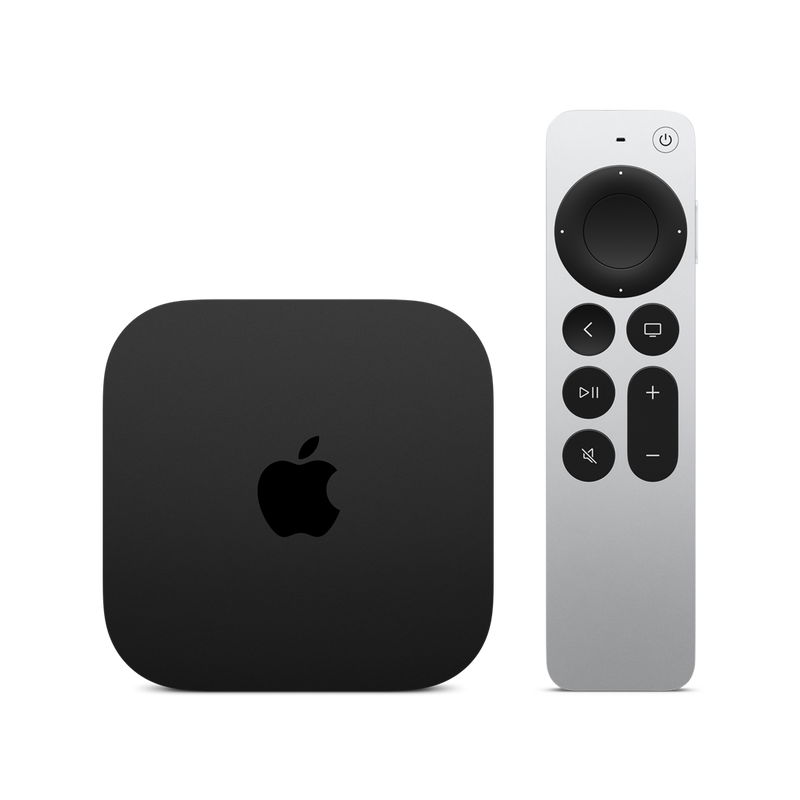
Apple TV 4K (3rd gen) — the recommended Matter hub for Apple Home
Apple Home uses Apple TV 4K or HomePod as its Matter controller hub. Commissioning failures in HomeKit often stem from iCloud sync issues or hub connectivity problems.
Step-by-step Apple Home fix:
- Sign out and back into iCloud on your iPhone. Settings › [Your Name] › Sign Out, then sign back in. This refreshes HomeKit credentials.
- Restart your Apple TV or HomePod. Unplug for 30 seconds, plug back in, wait 2 minutes before attempting to pair again.
- Enable Bluetooth on your iPhone. Matter commissioning via Apple Home requires Bluetooth to be active during setup, even for Wi-Fi devices.
- Check Home Hub status. Open Home app › Settings (house icon) › Home Hubs & Bridges. Your hub should show “Connected.” If it shows “Not Responding,” restart it first.
- Reset the device back to factory defaults and try again. Long-press reset buttons per manufacturer instructions.
- Try adding via QR code instead of NFC tap, or vice versa. Apple Home supports both methods and one may work when the other fails.
- Update iOS and Home app. Settings › General › Software Update. Matter support improves with every iOS update.
🏠 Google Home Commissioning Failed
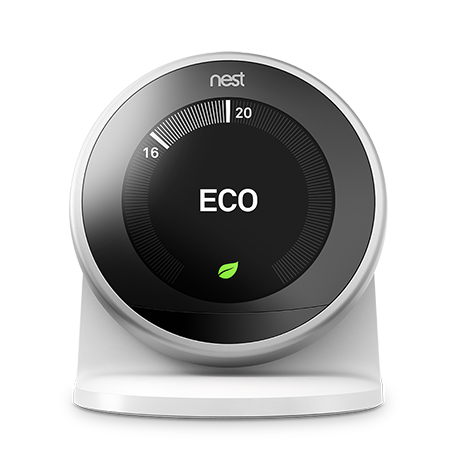
Google Nest Hub (2nd gen) — recommended Matter hub for Google Home
Google Home has improved its Matter support substantially in 2025-2026, but commissioning failures still occur, especially on Android phones with strict app permissions.
Step-by-step Google Home fix:
- Grant all permissions to Google Home app. Android Settings › Apps › Google Home › Permissions. Enable Location (Precise), Nearby Devices, and Camera.
- Enable “Nearby device scanning” in Android Settings › Connected Devices › Connection Preferences. This is required for Matter discovery.
- Check Google account synced to your Nest hub. The Google Account on your phone must match the account used to set up your Google Nest Hub.
- Restart the Google Home app. Force-close and reopen the app, then attempt commissioning again.
- Try a different Android phone if available. Google Home commissioning occasionally fails on specific Android versions due to BLE stack bugs.
- Check if Google Home app is in beta. Beta versions occasionally have commissioning bugs. Leave the beta channel if issues persist (Google Play › Google Home › Leave beta).
- Factory reset your Nest Hub. Hold the mute button for 10 seconds. Recommission it first before attempting to add other Matter devices.
🕢 Amazon Alexa Commissioning Failed
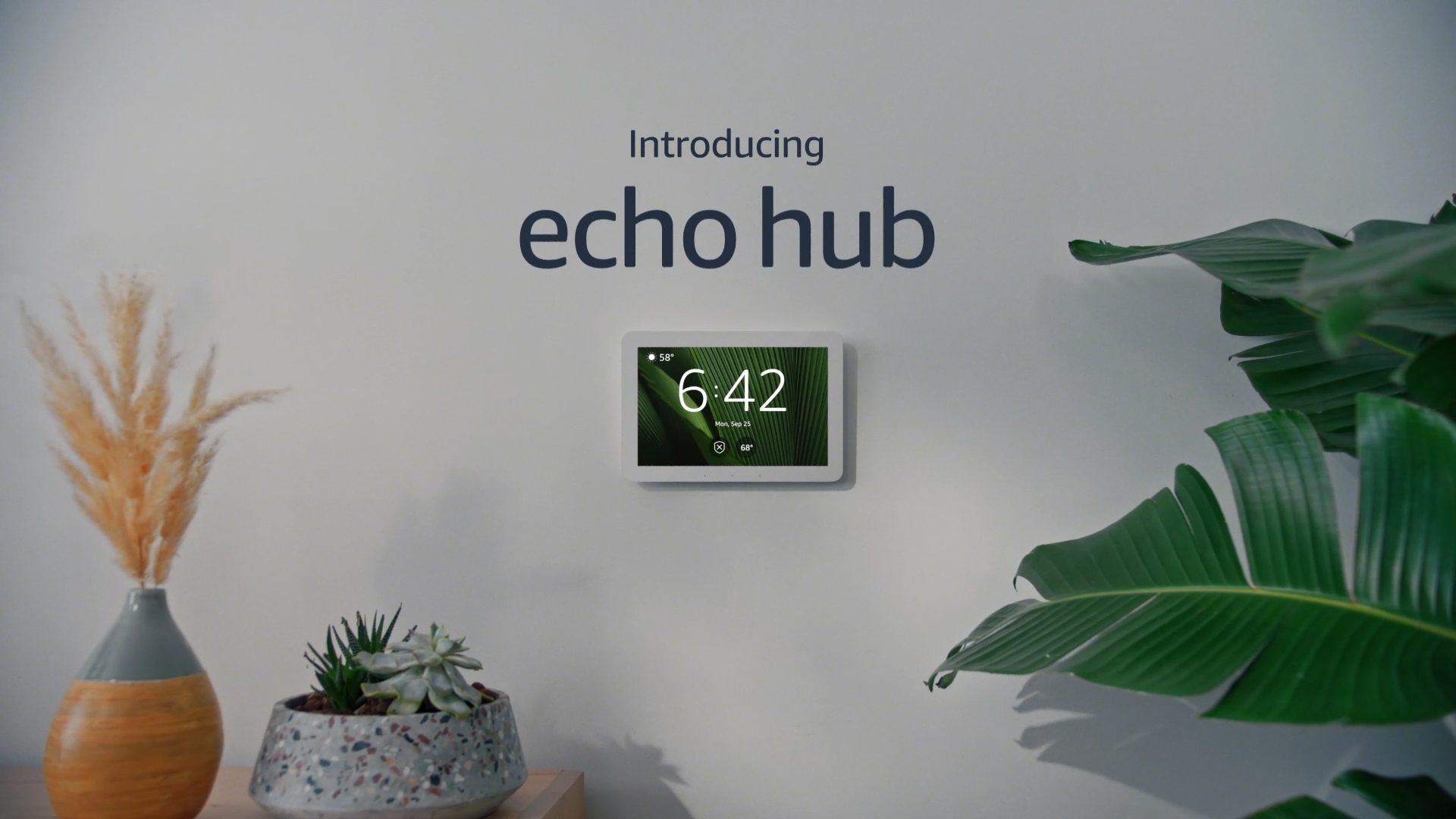
Amazon Echo (4th gen) — supports Matter over Wi-Fi and Thread
Amazon’s Echo devices support Matter but require the Alexa app on your phone during commissioning. Echo 4th gen and Echo Hub are the most reliable Matter controllers.
Step-by-step Alexa fix:
- Update the Alexa app. Outdated Alexa app versions have known Matter commissioning bugs. Update via App Store or Google Play.
- Navigate correctly in Alexa app: Devices tab › + (Add) › Add Device › Matter › Start. Don’t use the generic device setup flow.
- Ensure Echo is online. In Alexa app › Devices › Echo & Alexa, confirm your Echo shows as Online.
- Same Amazon account on phone and Echo. The Alexa account on your phone must own the Echo device being used as hub.
- Disable VPN on your phone before commissioning. VPNs interfere with mDNS-based Matter discovery.
- Check for Echo software updates. Alexa app › [Your Echo] › Device Settings › About. Software updates install automatically but may be pending.
- Try Matter setup via Alexa web console (alexa.amazon.com) as an alternative if the app fails repeatedly.
🔣 Home Assistant Commissioning Failed
Home Assistant’s Matter implementation (via the Matter integration + HAOS add-on) is mature but requires correct infrastructure setup.
Step-by-step Home Assistant fix:
- Verify Matter server add-on is running. Settings › Add-ons › Matter Server › must show “Running.”
- Check Matter integration is loaded. Settings › Devices & Services › Matter (BETA) › should show 0+ devices (even if empty).
- Enable IPv6 on your network. Home Assistant Matter requires IPv6. Check your router settings and ensure IPv6 is enabled.
- Restart Matter Server add-on before each commissioning attempt. Settings › Add-ons › Matter Server › Restart.
- Update HAOS and Matter integration. Settings › System › Updates. Matter support in Home Assistant improves with every release.
- Commission via Home Assistant Companion app, not the web interface. Open HA Companion app on your phone › Settings › Devices › Add Matter Device.
- Check multicast routing. If your HA instance is on a VLAN or different subnet, ensure mDNS multicast traffic is allowed between VLANs. See our router VLAN/mDNS fix guide.
🏠 Samsung SmartThings Commissioning Failed
Samsung SmartThings Station — Matter + Thread hub
Samsung SmartThings supports Matter via the SmartThings Station and newer Smart Hub models. Commissioning via the SmartThings app has specific requirements.
Step-by-step SmartThings fix:
- Update SmartThings app to the latest version from Google Play or App Store.
- Verify SmartThings Station firmware. In the SmartThings app, navigate to your Station and check for firmware updates under device settings.
- Use the correct commissioning flow: SmartThings app › + (Add) › Device › Scan QR Code.
- Ensure Samsung account is consistent across phone and SmartThings hub.
- Restart your SmartThings Station by unplugging and waiting 60 seconds before retrying.
Brand-Specific Matter Commissioning Fixes
Aqara Device Commissioning Failed
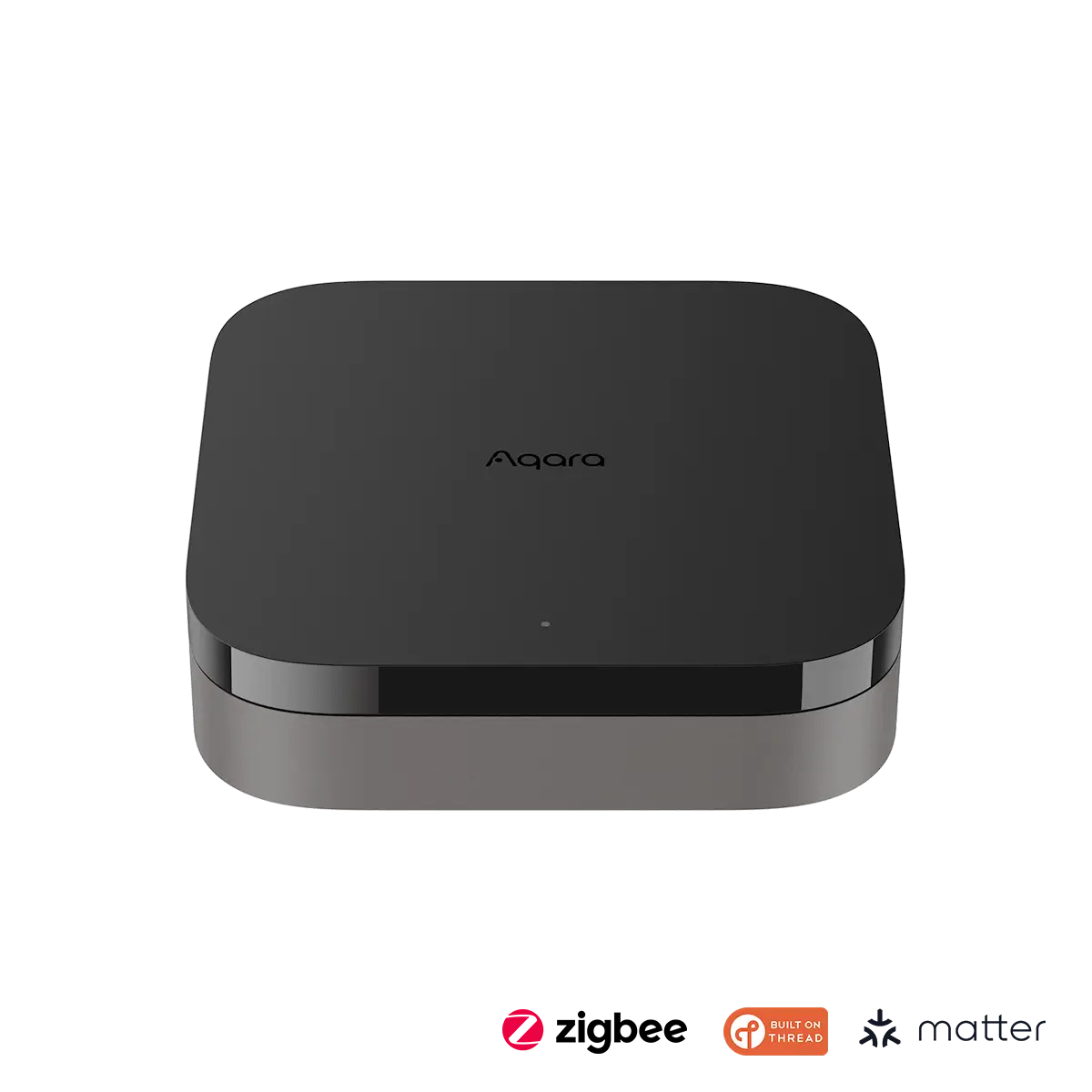
Aqara Hub M3 — required for Aqara devices to work with Matter
Most Aqara devices are not native Matter devices—they connect to Matter via the Aqara Hub M3 acting as a Matter bridge. This is a critical distinction that trips up many users.
- Aqara devices do NOT have QR codes for direct Matter commissioning. You must add them to the Aqara Home app first, then expose them via the Aqara Hub M3 as Matter accessories.
- Aqara Hub M3 is the Matter-enabled device. Commission the Hub M3 directly to your platform (Apple Home, Google Home, Alexa). The Hub then bridges your Aqara sensors, locks, and cameras.
- Update Aqara Home app and Hub M3 firmware before commissioning. Settings › Hub M3 › Firmware Update.
- Aqara Hub G350 also supports Matter Bridge mode as of firmware 3.3+.
Eve Smart Plugs & Sensors Commissioning Failed
Eve devices are native Thread-based Matter devices and are generally reliable, but have specific reset procedures:
- Eve Energy (smart plug): Reset by holding the button for 10 seconds until the LED flashes amber. Then immediately scan the QR code in your app.
- Eve Door & Window: Use a paperclip to hold the reset button for 5 seconds. LED flashes to confirm reset.
- Thread Border Router required. Eve devices connect via Thread, not Wi-Fi. Ensure you have a Thread Border Router (Apple TV 4K, HomePod mini, Google Nest Hub 2nd gen, or Amazon Echo 4th gen) on your network. See our Thread Border Router guide.
- Pairing window is time-limited. After resetting an Eve device, you have approximately 3 minutes to complete commissioning before the pairing window expires. See our pairing window expired fix.
TP-Link Tapo Commissioning Failed
TP-Link Tapo offers native Matter support on newer models (P125M, P115M, L930-5M, and others).
- Factory reset required for first Matter setup. Even if the device was previously set up via the Tapo app, you need to factory reset it to access the Matter commissioning QR code.
- QR code is on the device or packaging. The Matter QR code is printed on the device itself or the packaging. After reset, scan this code directly (don’t use the Tapo app to add it first).
- Power cycle before each attempt. Unplug the Tapo device, wait 10 seconds, plug back in, then immediately start the commissioning process in your hub app.
- TP-Link Tapo app and Matter are separate. If you add a Tapo device to the Tapo app with Matter, it becomes “claimed” and may block re-commissioning to a different platform. Factory reset first.
Nanoleaf Commissioning Failed
Nanoleaf Essentials (A19 bulbs, light strips) support native Matter over Thread.
- Reset Nanoleaf bulb: Turn the bulb on and off 5 times in quick succession (1-second intervals). LED flashes to confirm reset mode.
- QR code location: The Matter QR code is on the bulb packaging. If packaging is lost, access the numeric code via Nanoleaf app › Settings › Device › Matter.
- Thread network must be stable before commissioning. Confirm your Thread Border Router is online and working first.
IKEA DIRIGERA & Tradfri Commissioning Failed
IKEA’s DIRIGERA hub supports Matter bridge mode, similar to Aqara’s approach.
- DIRIGERA hub must be on firmware 1.5.0+ for stable Matter support.
- Add IKEA devices to IKEA Home Smart app first, then use DIRIGERA as a Matter bridge to your platform of choice.
- Only certain IKEA devices are exposed via Matter bridge—not all Tradfri accessories are bridged. Check the IKEA compatibility list in their app.
The Nuclear Option: Full Factory Reset + Re-Commission
If all targeted fixes fail, a complete reset cycle almost always works. This involves resetting both the device and removing any stale references from your hub’s memory:
- Remove the device from your hub app completely (if it was partially added). Look for it in a “Not Responding” or “Incomplete” state and delete it.
- Factory reset the device per manufacturer instructions. This clears all commissioning credentials stored on the device.
- Restart your hub (Apple TV, Google Nest Hub, Echo, etc.).
- Restart your router. Clears any stale mDNS cache or DHCP lease conflicts.
- Power cycle the device once more after router restart completes.
- Place device within 10 feet of hub. Distance matters during initial commissioning, even for Wi-Fi devices.
- Start commissioning immediately—within 60 seconds of device power-on. Don’t wait.
Advanced Troubleshooting: Network Diagnostics
If basic fixes haven’t worked, the problem is likely your network configuration. Matter has specific network requirements that many consumer routers don’t meet by default:
mDNS (Multicast DNS) Must Be Enabled
Matter uses mDNS for device discovery on your local network. If your router blocks multicast traffic—especially common on mesh systems with “AP Isolation” enabled—commissioning will fail silently.
- Disable AP Isolation / Client Isolation in your router’s wireless settings
- Enable mDNS forwarding if you use VLANs
- Disable Multicast Isolation if listed in advanced wireless settings
IPv6 Must Be Available
Thread-based Matter devices require IPv6 for communication. Even Wi-Fi Matter devices benefit from IPv6 being enabled on your network.
- Enable IPv6 in your router’s WAN settings (set to “Auto” or “DHCPv6”)
- Enable IPv6 in LAN/DHCP settings to give your local devices IPv6 addresses
For the complete router configuration guide, see: Router Blocking Matter Devices: IPv6, mDNS & VLAN Fix Guide
When to Contact Support
If you’ve tried all the above fixes and commissioning still fails, it’s time to escalate:
- Device hardware defect: If the QR code is unreadable or damaged, contact the manufacturer. They can usually provide a replacement numeric code or replacement device.
- Hub firmware bug: If a specific hub firmware version introduced the issue, check the manufacturer’s community forums and wait for a patch or roll back if possible.
- Contact manufacturer support with your log file. Most hub apps have a “Submit Feedback” or “Send Logs” option after a failed commissioning attempt. Use it—it speeds up support resolution significantly.
Related Troubleshooting Guides
🔗 Matter Troubleshooting Series
This article is part of our complete Matter troubleshooting series. If commissioning failed for a specific reason, these targeted guides go deeper:
- 🔸 Matter Pairing Window Expired Fix — Why the 3-minute window exists and how to extend it
- 🔸 Thread Device Joined Wrong Network Fix — When your Thread device pairs to a neighbor’s network
- 🔸 Matter Firmware Update Required Before Pairing — Step-by-step firmware update guides by brand
- 🔸 Router Blocking Matter Devices: IPv6/mDNS Fix — Network configuration for Google WiFi, Eero, Asus, Netgear
- 🔸 Thread Border Router Explained + Setup Guide — Which hubs have Thread Border Routers built in
- 🔸 Matter Multi-Admin Sharing Cross-Platform — Share devices across Apple Home, Google Home, and Alexa
Frequently Asked Questions
Why does Matter commissioning fail every time I try?
The most common cause of repeated commissioning failure is a network issue—specifically mDNS being blocked or IPv6 being disabled on your router. The second most common cause is an expired pairing window: the device exits commissioning mode and your app is still trying to connect. Factory reset the device and try immediately after power-on.
Can I commission a Matter device without a hub?
Yes, but with limitations. Some platforms like Google Home and Alexa allow commissioning without a dedicated hub using only your smartphone as the controller. However, for full functionality, remote access, and automations, a hub (Apple TV, Echo, Nest Hub) is required.
Does Matter commissioning fail more on Thread vs Wi-Fi devices?
Thread devices have slightly more commissioning complexity because they require a Thread Border Router on your network. Wi-Fi Matter devices connect directly to your Wi-Fi and tend to commission more reliably. However, once commissioned, Thread devices are more reliable day-to-day due to mesh networking.
What does the “commissioning failed” error code mean?
The error code varies by platform. Common ones include Error 4 (timeout—device stopped responding), Error 7 (network unreachable—IPv6/mDNS issue), and Error 9 (credentials rejected—device was already commissioned elsewhere and needs a factory reset). Error messages and codes are logged differently per app; Apple Home is the least descriptive, Home Assistant the most.
Can I commission the same Matter device to multiple apps?
Yes—this is called Matter Multi-Admin sharing. After initial commissioning to your first platform, use the “Share” or “Add to another app” option in your hub’s app to generate a new one-time pairing code for the second platform. See our complete Multi-Admin guide.
How long does Matter commissioning take?
Normal commissioning takes 30–90 seconds from QR scan to device appearing in your app. If it takes more than 3 minutes without completing, the attempt has likely failed silently. Force-close your hub app, wait 30 seconds, and try again.
Conclusion
Matter commissioning failures are frustrating but almost universally fixable. The three root causes—firmware, network configuration, and pairing window timing—account for the vast majority of failures across all platforms and brands.
Start with the Pre-Commissioning Checklist above, then work through your specific platform section. For persistent failures, the nuclear reset option (full factory reset of device + hub restart + router restart) solves edge cases that targeted fixes miss.
If you’re building out your Matter smart home and want reliable hubs that minimize commissioning failures, our top recommendations are below: