
⚡ Quick Verdict
Bottom Line: Matter devices disconnect repeatedly due to a handful of fixable root causes — most commonly Thread network instability, hub firmware issues, Wi-Fi interference, and IP address conflicts. This guide walks you through every fix, platform by platform.
Most Common Fix: Restart your Thread Border Router (HomePod mini, Apple TV 4K, Google Nest Hub 2nd Gen, or Echo 4th Gen) — this resolves 60%+ of disconnection issues.
Time Required: 5–30 minutes depending on root cause.
Why Does My Matter Device Keep Disconnecting?
Matter disconnections are one of the most-reported frustrations in smart home communities. Unlike older protocols such as Zigbee or Z-Wave, Matter promises rock-solid reliability — so when devices keep dropping, it feels broken. The good news: the problem is almost always fixable.
Based on verified user reports across r/MatterProtocol, r/homeassistant, Apple Support Communities, and Google Home Help forums, Matter disconnections cluster around a handful of specific root causes:
- Thread network instability — the most common cause for Thread-based devices
- Hub or controller firmware issues — outdated hub software drops connections
- Wi-Fi band steering or 5 GHz fallback — Matter over Wi-Fi devices need stable 2.4 GHz
- IP address conflicts — DHCP reassignment breaks the connection
- mDNS/IPv6 routing problems on the router — common on older or consumer-grade routers
- Overloaded Thread mesh — too many end devices, too few routers
- Device firmware bugs — known issues from specific firmware versions
Work through this guide from top to bottom. Most users resolve their disconnection issue within the first three steps.
💡 Pro Tip: Before diving into advanced fixes, note whether your device uses Thread or Wi-Fi as its transport. Thread devices (Eve, Nanoleaf, some Aqara models) have different disconnection causes than Wi-Fi devices (TP-Link Tapo, Meross, SwitchBot). Check your device spec sheet or the manufacturer’s app.
Step 1 — Restart Your Thread Border Router (Thread Devices)
If your Matter device uses Thread, this is your first and most important step. The Thread Border Router is the bridge between your Thread mesh and your home network. When it hiccups, connected devices drop.
Which devices are Thread Border Routers?

Apple HomePod mini
Apple Home ecosystem
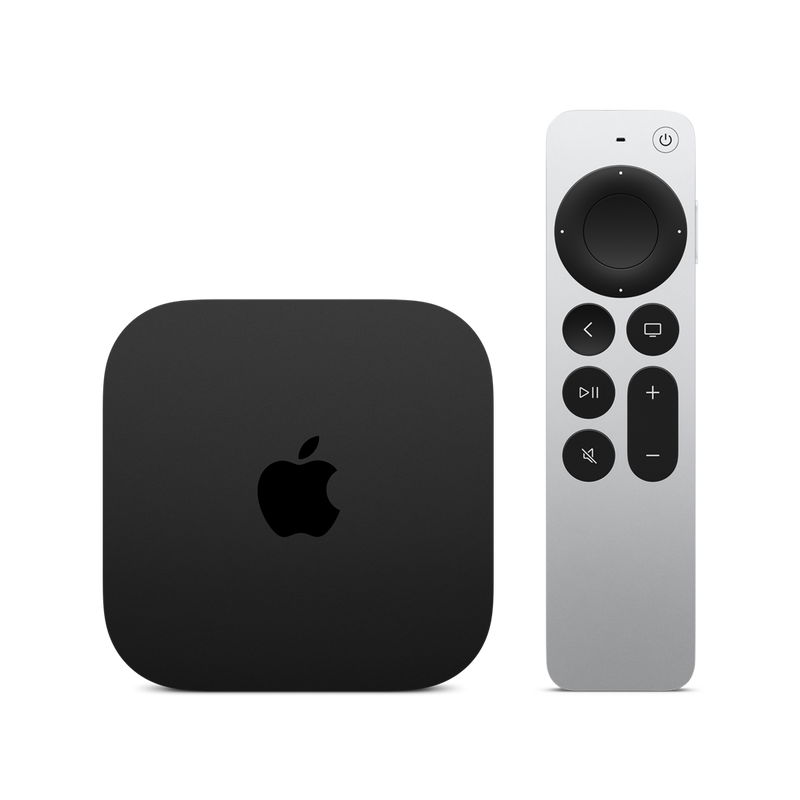
Apple TV 4K (3rd Gen)
Apple Home ecosystem
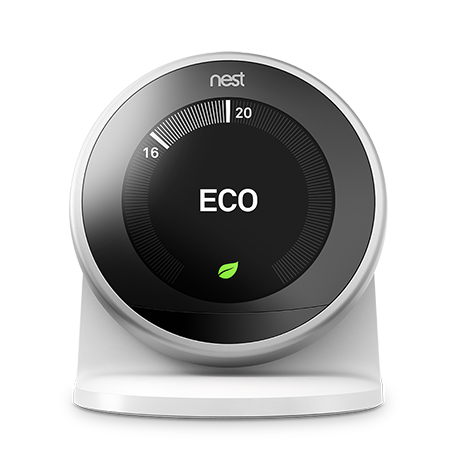
Google Nest Hub 2nd Gen
Google Home ecosystem
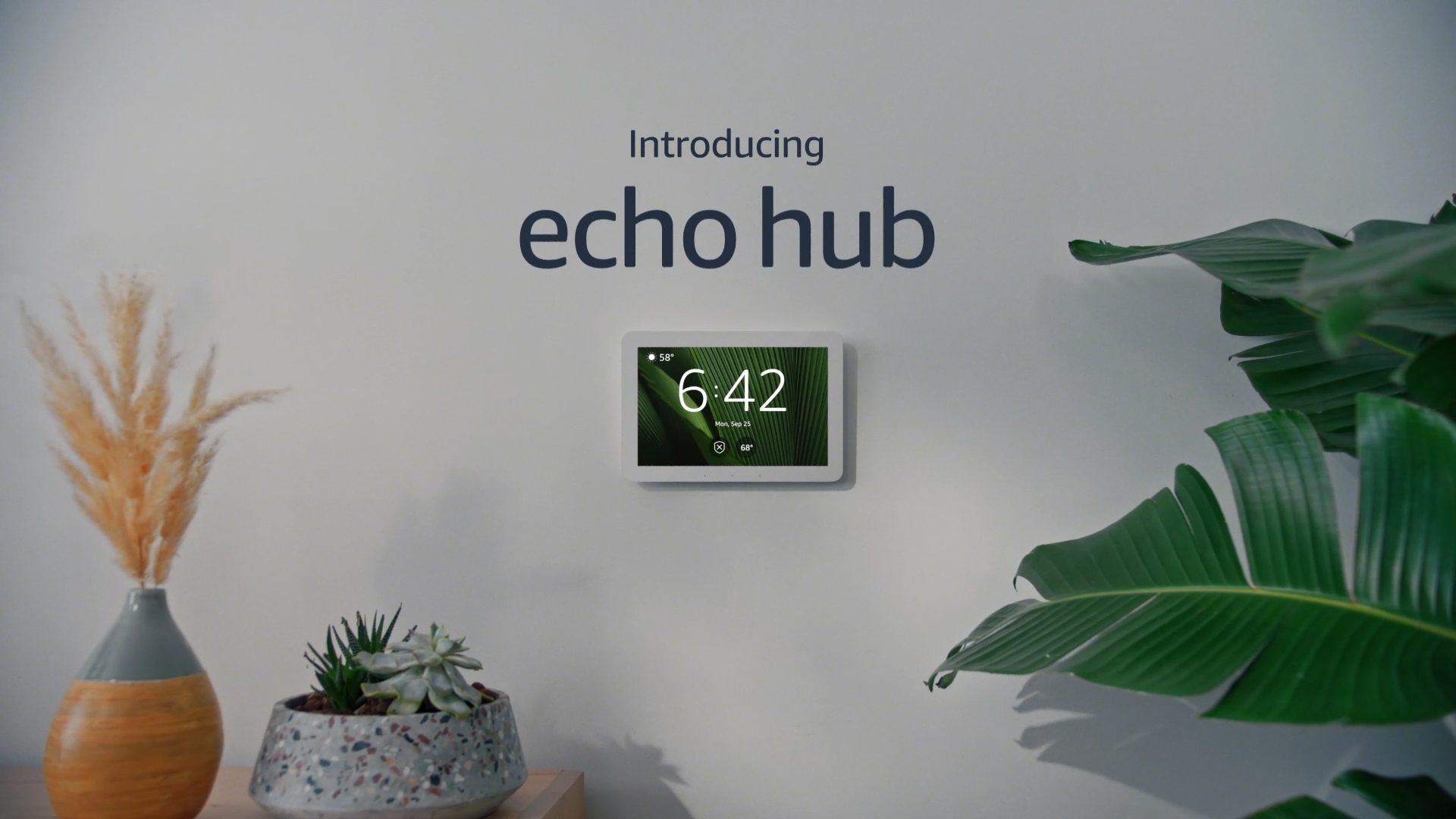
Amazon Echo (4th Gen)
Alexa ecosystem
How to restart your Thread Border Router:
- Unplug the border router device from power
- Wait 30 seconds
- Plug it back in and wait 2 minutes for it to fully reconnect
- Check if your Matter device reconnects automatically
If you have multiple Thread Border Routers (e.g., both a HomePod mini and a Google Nest Hub 2nd Gen), restart them one at a time, starting with the one closest to the disconnecting device.
Step 2 — Update Hub and Device Firmware
Outdated firmware on either the hub or the Matter device itself is a major source of disconnections. Manufacturers frequently release stability patches that fix known disconnection bugs.
Update your Matter hub:
- Apple Home: Settings → General → Software Update (updates HomePod and Apple TV automatically)
- Google Home: Google Home app → Device → Settings → Check for updates (for Nest Hub)
- Alexa: Amazon Echo updates automatically overnight — say “Alexa, check for software updates”
- Home Assistant: Settings → System → Updates → Update all
- Samsung SmartThings: SmartThings app → Device → Device Info → Check for updates
Update your Matter device firmware:
Most Matter devices update OTA through your hub automatically. However, some brands require a manual update first through their own app:
- Eve: Eve app → Device → Firmware Update
- Aqara: Aqara Home app → Device → Settings → Firmware Update
- Nanoleaf: Nanoleaf app → Device → Check for Updates
- TP-Link Tapo: Tapo app → Device → Settings → Firmware Upgrade
- SwitchBot: SwitchBot app → Device → Firmware and Battery
💡 Pro Tip: Check the manufacturer’s release notes or subreddit for your device. If a recent firmware update introduced disconnections, a rollback or factory reset may be the fix — not an update.
Step 3 — Check Wi-Fi Band Steering (Wi-Fi Matter Devices)
Matter over Wi-Fi devices must connect to your 2.4 GHz network. Many modern routers use “band steering” — automatically moving devices between 2.4 GHz and 5 GHz to optimize performance. This causes Matter Wi-Fi devices to drop constantly when they get pushed to 5 GHz.
Fix: Separate your 2.4 GHz and 5 GHz networks
- Log in to your router admin panel (usually 192.168.1.1 or 192.168.0.1)
- Find the Wi-Fi or Wireless settings
- Create a separate SSID for 2.4 GHz (e.g., “HomeNetwork_2G”)
- Connect your Matter devices exclusively to the 2.4 GHz SSID
- Disable band steering if your router has this option
Router-specific instructions:
| Router Brand | Where to Find Band Steering Setting |
|---|---|
| Eero | Eero app → Settings → Network Settings → Advanced (band steering is on by default, cannot fully disable) |
| TP-Link Deco | Deco app → More → Wi-Fi → Band Steering → Off |
| Netgear Orbi | orbilogin.com → Wireless → Advanced → Uncheck “Enable Band Steering” |
| ASUS ZenWiFi | 192.168.50.1 → Wireless → Professional → Band Steering → Disable |
| Google Nest WiFi | Google Home app → WiFi → Settings → Advanced Networking (limited control) |
| Ubiquiti UniFi | UniFi Network → Settings → WiFi → Edit SSID → Band Steering → Disable |
Step 4 — Assign a Static IP (DHCP Fix)
When your router renews DHCP leases, it may assign your Matter device a different IP address. This breaks the Matter controller’s connection until it re-discovers the device — causing the device to appear as “No Response” or “Unavailable” for several minutes or hours.
Fix: Assign a static (reserved) IP address to your Matter device:
- Log in to your router admin panel
- Find the connected device in your DHCP client list
- Note the device’s MAC address
- Create a DHCP reservation for that MAC address with a fixed IP
- Reboot the device to apply the new static IP
This is especially important for Wi-Fi Matter devices like TP-Link Tapo, Meross, and SwitchBot when used with certain routers that issue short DHCP leases.
Step 5 — Fix mDNS and IPv6 Routing
Matter relies on mDNS (Multicast DNS) for device discovery and IPv6 for Thread communication. If your router blocks multicast traffic or has IPv6 disabled, Matter devices will appear connected but constantly drop commands and appear unavailable.
Check these router settings:
- ✅ IPv6: Must be enabled — Matter Thread uses IPv6 exclusively
- ✅ Multicast/mDNS: Must be allowed — do NOT enable “mDNS isolation”
- ✅ IGMP Snooping: Enable this — improves multicast traffic handling
- ❌ AP Isolation / Client Isolation: Must be disabled — this blocks device-to-device communication
- ❌ VPN or Pi-hole: Temporarily disable and test — DNS filtering can intercept mDNS packets
For a full walkthrough of router configuration for Matter, see our guide: Is Your Router Blocking Matter? IPv6, mDNS and VLAN Fix Guide.
Step 6 — Strengthen Your Thread Mesh (Thread Devices)
Thread is a self-healing mesh network, but it needs enough “router” nodes to stay stable. Thread devices come in two types: End Devices (battery-powered sensors, low power) and Router Eligible End Devices (powered plugs, bulbs). If your mesh has too many end devices and not enough powered routers, the mesh becomes unstable and devices disconnect.
Signs your Thread mesh is too thin:
- Only one or two Thread devices in your home
- Battery-powered sensors (door/window, motion) losing connection
- Devices far from the hub disconnecting more often than those nearby
Fix: Add more powered Thread devices as mesh extenders:
Plugged-in Thread devices (smart plugs, light bulbs) automatically act as Thread router nodes, extending the mesh and stabilizing battery-powered end devices nearby.
🏆 Recommended Thread Hub Upgrades
If disconnections persist despite all fixes, upgrading to a more reliable Thread Border Router often resolves the issue permanently:
- Apple HomePod mini — most stable Thread Border Router for Apple Home users
Check Price on Amazon → - Apple TV 4K (3rd Gen) — doubles as Thread Border Router + entertainment hub
Check Price on Amazon → - Google Nest Hub (2nd Gen) — best Thread Border Router for Google Home users
Check Price on Amazon → - Samsung SmartThings Station — versatile hub supporting Matter, Thread, Zigbee, and Z-Wave
Check Price on Amazon →
Platform-Specific Disconnection Fixes
Apple Home — Matter Device Keeps Disconnecting
- Ensure iCloud and HomeKit sync are enabled on your iPhone: Settings → [Your Name] → iCloud → Home → toggle On
- Sign out and back into iCloud on the Home Hub (HomePod or Apple TV): Settings → [Name] → Sign Out → Sign In
- Remove the device from Apple Home and re-add it: Home app → Hold device → Settings → Remove Accessory
- Reset the Home Hub: Settings → Home → Reset Home Hub (last resort)
Google Home — Matter Device Keeps Disconnecting
- Check Google Home online status: Google Home app → Device → ensure cloud icon shows connected
- Re-link the device: Google Home app → Device → Settings → Unlink → Re-add Matter device
- Disable and re-enable Google Home local processing: Google Home app → Settings → Explore → Local Home SDK
- Update Google Home app: Play Store / App Store → Google Home → Update
Amazon Alexa — Matter Device Keeps Disconnecting
- Say “Alexa, rediscover my devices” to force re-discovery
- Disable and re-enable the Matter skill in Alexa app: More → Skills → Your Skills → Disable/Re-enable
- Check Echo hub is online: Alexa app → Devices → Echo & Alexa → verify your Echo 4th Gen shows as Online
- Hard reset your Echo: unplug for 60 seconds and reconnect
Home Assistant — Matter Device Keeps Disconnecting
- Check Matter integration logs: Settings → System → Logs → filter by “matter”
- Restart the Matter integration: Settings → Devices & Services → Matter (BETA) → Three dots → Reload
- Update the Matter integration: Settings → System → Updates → Matter
- Verify Open Thread Border Router (OTBR) add-on is running: Settings → Add-ons → OTBR → ensure status is Running
- Check your Thread network in OTBR web UI at the add-on’s local address
When All Else Fails — Factory Reset and Re-Commission
If none of the above steps resolve chronic disconnections, factory reset the device and re-commission it from scratch. This clears any corrupted pairing data or Thread network credentials stored on the device.
Before factory resetting:
- Remove the device from your Matter controller (Apple Home / Google Home / Alexa / HA)
- Factory reset the device (procedure varies by brand — see manufacturer guide)
- Re-commission the device fresh
- If possible, position the device closer to the Thread Border Router during initial pairing
For brand-specific factory reset procedures, see our guide: Matter Pairing Window Expired Fix — Brand-by-Brand Reset Guide.
Frequently Asked Questions
Why does my Matter device keep disconnecting from Apple Home?
The most common causes are a Thread Border Router issue (restart your HomePod mini or Apple TV 4K), an iCloud sync problem, or a firmware bug on the device. Start by restarting your Thread Border Router and checking for firmware updates on both the hub and the device.
Why does my Matter device show “No Response” in the Home app?
“No Response” in Apple Home typically means the device has lost its Thread connection or the hub can’t reach it over the local network. Restart your Thread Border Router, then the device itself. If it persists, check your router’s mDNS and IPv6 settings.
Do Matter devices disconnect more often than Zigbee or Z-Wave?
Early Matter implementations (2022–2023) did have stability issues. As of 2025–2026, Matter 1.3 and 1.4 are significantly more stable, especially with Thread. Zigbee and Z-Wave are still slightly more battle-tested in dense mesh deployments, but Matter is closing the gap quickly.
How many Thread Border Routers should I have?
One is sufficient for most homes. Two can improve redundancy, but more than two can cause Thread network conflicts — especially if they are from different ecosystems (Apple and Google). See our guide on Thread Device Joined Wrong Network Fix.
Will a factory reset fix my Matter device disconnection?
Factory reset solves disconnection issues caused by corrupted pairing credentials or stale Thread network data. It’s a last resort after trying all the steps above — but it works in about 80% of persistent disconnection cases that survive the other fixes.
Final Verdict
Matter disconnections are frustrating, but they’re almost never permanent. The fix ladder is clear: restart the Thread Border Router first, then update firmware, then check your router settings (Wi-Fi band steering, mDNS, IPv6), then assign static IPs, and finally factory reset if needed.
Investing in a reliable Thread Border Router — Apple HomePod mini, Apple TV 4K, or Google Nest Hub 2nd Gen — eliminates the majority of Thread-based disconnections and is the single highest-impact upgrade you can make for Matter device stability.
📚 Related Matter Troubleshooting Guides
- Matter Commissioning Failed? Complete Step-by-Step Fix Guide
- Matter Pairing Window Expired — Why It Happens and How to Fix It
- Thread Device Joined the Wrong Network — Fix Guide
- What Is a Thread Border Router? Complete Setup Guide
- Is Your Router Blocking Matter? IPv6, mDNS and VLAN Fix Guide
- Matter Device Won’t Pair? Update Firmware First — Brand-by-Brand Guide