
⚡ Quick Verdict
Bottom Line: A Matter device showing as “not responding” is almost always fixable without buying new hardware. The most common culprits are a stale hub connection, Thread network disruption, or a device that needs a quick power cycle.
Fix in 2 minutes: Power cycle your device AND your hub/controller simultaneously, wait 30 seconds, then check again. This resolves ~60% of “not responding” errors.
Deeper issue? Follow the step-by-step fixes below — organized from fastest to most involved.
You tap an app button and nothing happens. Your Matter smart lock, light, sensor, or plug shows “Not Responding” — even though it was working fine yesterday. Sound familiar?
Matter is designed to be the most reliable smart home protocol ever created, but “not responding” errors still happen — usually for predictable, fixable reasons. In this guide, we walk through every known cause with clear, actionable fixes.
By the end, you’ll know exactly how to get your device back online, and what to do if it refuses to cooperate.
Why Do Matter Devices Stop Responding?
Unlike older smart home protocols, Matter devices communicate over your local IP network — either over Wi-Fi directly or via Thread (a low-power mesh radio). When something goes wrong at any layer of that stack, your app loses contact and reports “not responding.”
Common root causes include:
- Hub/controller lost its connection state — the most common cause by far
- Thread border router went offline — Thread devices need a hub acting as a border router
- Wi-Fi IP address changed — DHCP-assigned IPs can shift after a router reboot
- Device firmware awaiting update — some devices become unresponsive when a mandatory update is pending
- Too far from hub or router — signal strength dropped below threshold
- Platform app bug or cloud outage — Apple Home, Google Home, and Amazon Alexa all have occasional glitches
- Device needs re-commissioning — the Matter fabric credential expired or got corrupted
Fix #1: The Power Cycle (Do This First)
Before anything else — power cycle both the device AND its hub simultaneously. This is the single highest-success fix and takes under two minutes.
Steps:
- Unplug your Matter hub (HomePod mini, Echo, Google Nest Hub, SmartThings Station, etc.)
- Unplug or switch off the unresponsive Matter device
- Wait a full 30 seconds (not 5 — the full 30)
- Plug the hub back in first — wait for it to fully boot (~60 seconds)
- Then restore power to the Matter device
- Open your app and check status — give it 60 seconds to reconnect
This works because Matter devices maintain a local session with the hub. If either side reboots without the other knowing, the session becomes stale. A simultaneous restart forces both sides to negotiate fresh.
Fix #2: Check Your Hub / Controller Status
Matter devices need a controller hub to mediate commands. If the hub has an issue, all connected devices appear unresponsive — even perfectly healthy ones.
Check your hub:
- Apple HomePod mini / HomePod: Look for a spinning light or solid orange — indicates a problem. Try unplugging for 30 seconds.
- Amazon Echo (4th Gen): Check the Alexa app for device status. If the Echo itself shows offline, all Matter devices will too.
- Google Nest Hub (2nd Gen): Check Google Home app — look for a “Hub offline” or “Home app not connected” warning.
- Apple TV 4K: Open Settings → AirPlay & HomeKit and check Home Hub status.
- Samsung SmartThings Station: Open SmartThings app → check Hub status in the Devices tab.

Apple HomePod mini
Thread border router + Matter controller
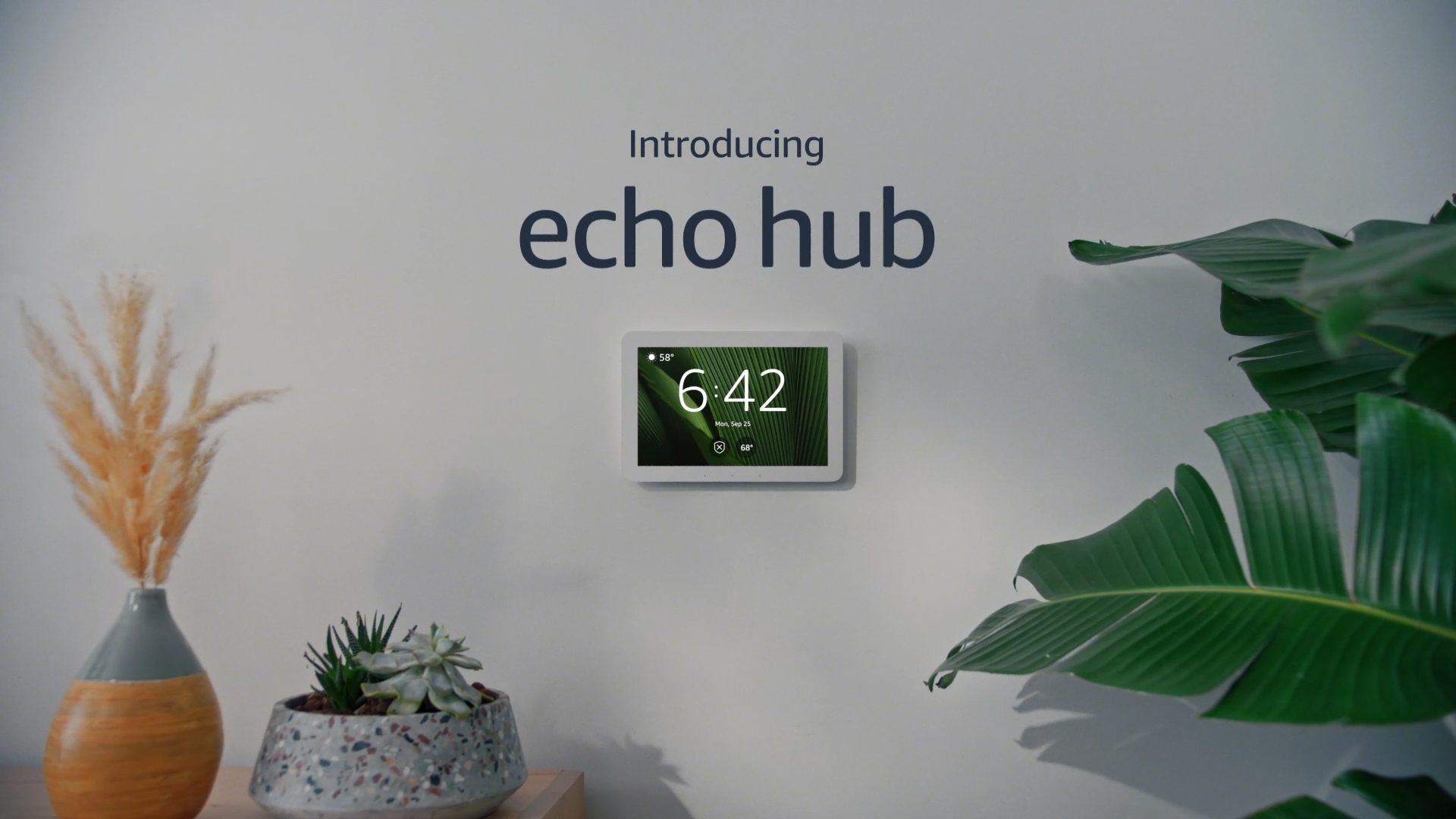
Amazon Echo (4th Gen)
Thread border router + Matter controller
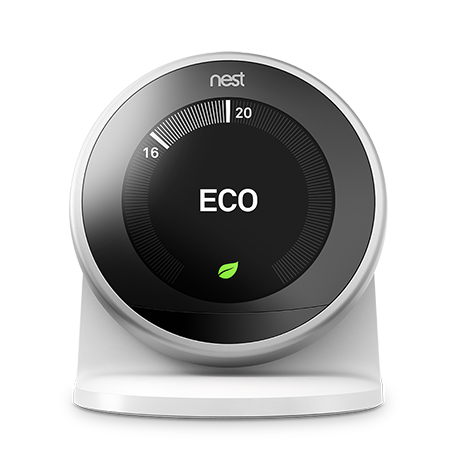
Google Nest Hub (2nd Gen)
Matter controller + home display
Fix #3: Thread Network Issues (Thread Devices Only)
If your unresponsive device connects via Thread (common for sensors, smart locks, and some plugs), the Thread mesh network itself may have lost connectivity.
How to diagnose:
- Check if all your Thread devices are unresponsive, or just one. Multiple unresponsive devices = Thread border router issue.
- In Apple Home: Settings → [your name] → Home Settings → Thread Network — check for active border routers.
- In Google Home: Look for “Thread network unavailable” messages.
- In Home Assistant: Settings → System → Hardware → Thread — check border router status.
Fix steps:
- Restart your Thread border router (usually a HomePod mini, Echo 4th Gen, Google Nest Hub 2nd Gen, or Apple TV 4K)
- Wait 2–3 minutes for the Thread mesh to reform
- If using multiple border routers, restart them one at a time
- Check that border routers are not too far from Thread devices (Thread range: ~10m per hop, up to 4 hops)
Fix #4: Wi-Fi Signal and Interference
Matter devices using Wi-Fi (not Thread) rely on a stable 2.4GHz or 5GHz connection. If signal drops below a usable level, the device stops responding.
Check and fix:
- Move the device closer to your router or a Wi-Fi access point temporarily — if it comes back online, signal was the issue
- Check for interference from microwaves, baby monitors, or neighboring Wi-Fi networks on the 2.4GHz band
- In your router admin, check if the device still has an active DHCP lease
- Enable band steering or set the 2.4GHz and 5GHz to separate SSIDs if your router merges them — some Matter devices struggle with band-steering routers
- Consider a Wi-Fi extender or mesh node to improve coverage in problem areas
Fix #5: IP Address Conflict or DHCP Lease Expired
After a router reboot or DHCP server reset, a Matter device may be assigned a new IP address — but the hub still has the old one cached. Result: “not responding.”
Fix steps:
- Log into your router admin page (usually 192.168.1.1 or 192.168.0.1)
- Find the DHCP client list and locate your Matter device
- Assign a static/reserved IP to the device (also called DHCP reservation)
- Restart the hub/controller app to force it to refresh device IP cache
Setting a static DHCP reservation prevents this from recurring. Most routers support this under LAN Settings → DHCP → Address Reservation.
Fix #6: Check for Pending Firmware Updates
Some Matter devices enter a degraded state when a firmware update is required but not yet applied. The device may still respond to local Thread/Wi-Fi pings but stops responding to Matter commands.
Update via your controller platform:
- Apple Home: Open the Home app → tap the device → scroll to Firmware Version → tap Update if available
- Google Home: Open the device card → tap the settings gear → check for firmware updates
- Amazon Alexa: Alexa app → Devices → select device → check Device Details for firmware version; updates apply automatically overnight
- Home Assistant: Settings → Devices & Services → select device → check firmware under device info
- Manufacturer app: Always check the brand’s own app (Aqara, Eve, Meross, etc.) — some brands push firmware through their own app, not the Matter controller
Fix #7: Re-Commission the Device (Remove and Re-Add)
If power cycling and network fixes don’t work, the Matter fabric credential stored on the device may be corrupted or expired. Re-commissioning forces a clean slate.
Steps:
- In your controller app (Apple Home, Google Home, Alexa, etc.), find the device and select Remove Device or Delete Device
- Factory reset the device (hold the reset button per manufacturer instructions — usually 5–10 seconds)
- Wait for the device to enter pairing mode (typically a flashing LED)
- Re-add the device using the Matter QR code or numeric code
- Test control from the app
Fix #8: Platform-Specific Fixes
Apple Home
- Sign out and back in: Settings → [your name] → Sign Out, then sign back in. Forces HomeKit to re-sync all device states.
- Remove and re-add Home Hub: If HomePod mini is acting as a home hub, try removing it from the home and re-adding.
- Reset HomeKit data: Settings → Privacy → HomeKit → Reset (nuclear option — removes everything, but fixes persistent database corruption)
- iCloud sync issues: HomeKit state syncs via iCloud. Check Settings → [your name] → iCloud → ensure iCloud Drive is enabled
Google Home
- Unlink and re-link device: In Google Home app, long-press the device → Remove device, then re-add
- Check Google account sync: Google Home requires internet access for Matter local control to initialize. Ensure your Google account is signed in properly.
- Clear Google Home app cache: Android: Settings → Apps → Google Home → Clear Cache. iOS: delete and reinstall the app
Amazon Alexa
- Forget device in Alexa app: Devices → select device → scroll down → Deregister, then re-discover
- Alexa app and Echo firmware check: Make sure your Echo hub firmware is current — Alexa app → Echo & Alexa → select Echo → Device Details → Check for Software Updates
- Disable and re-enable Matter skill: Alexa app → More → Skills & Games → search “Matter” → Disable, then re-enable
Home Assistant
- Restart the Matter integration: Settings → Devices & Services → Matter → click the three-dot menu → Reload
- Check Matter server add-on: If using Home Assistant OS, open Add-ons → Matter Server → check logs for errors and restart
- Re-interview the device: In the Matter integration, select the device → Reconfigure — this triggers a fresh device interview without full removal
- Update Home Assistant: Outdated HA versions have known Matter bugs. Settings → System → Updates — apply latest stable release
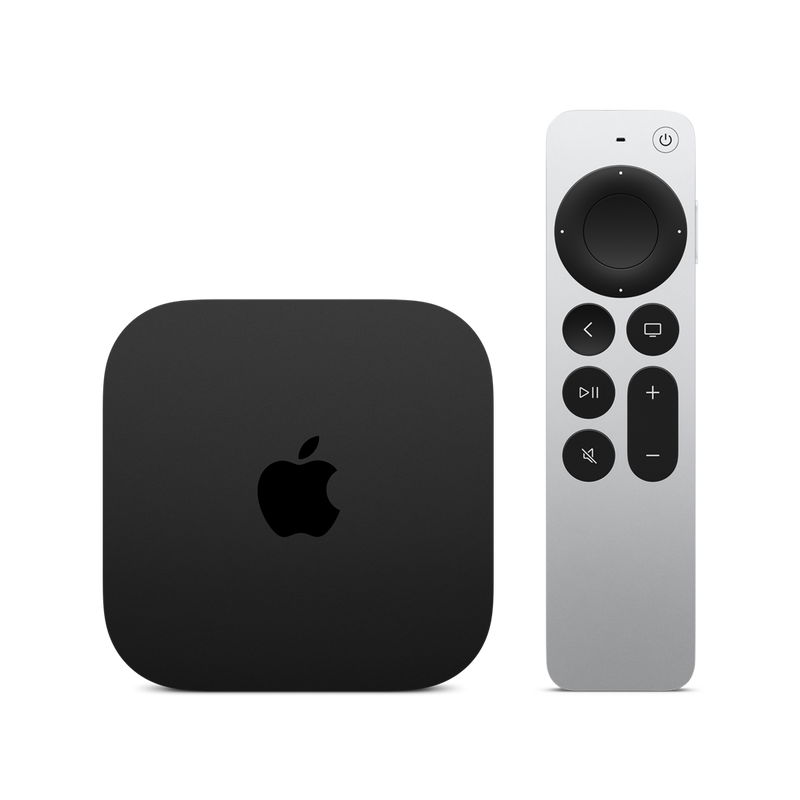
Apple TV 4K
Apple Home hub + Thread border router

Samsung SmartThings Station
SmartThings hub + Thread border router
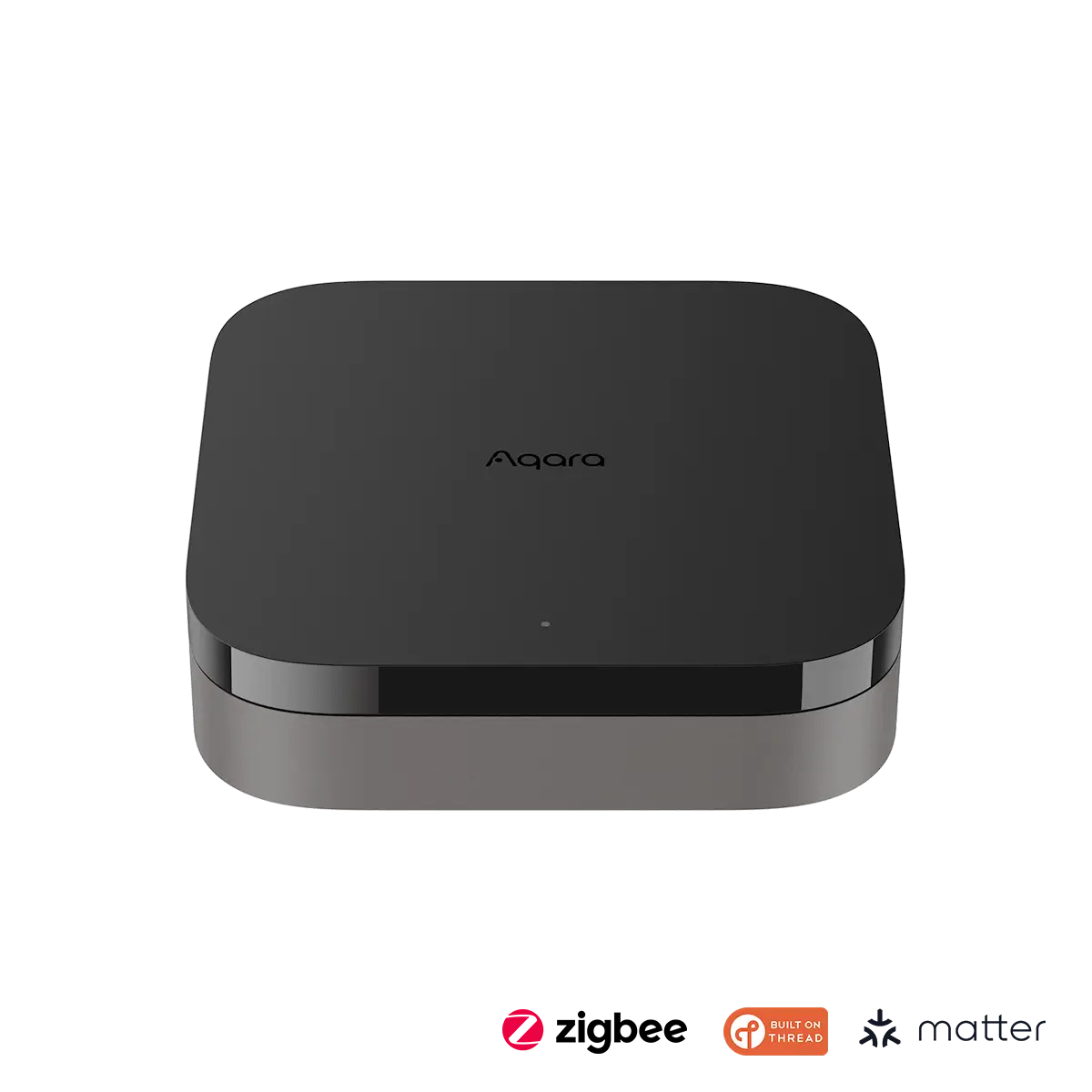
Aqara Hub M3
Matter + Zigbee + Thread controller
Fix #9: Factory Reset the Device
If every fix above has failed, a factory reset is your last software option before contacting support or replacing the device.
Factory reset erases all settings and Matter pairings from the device. You’ll need to set it up from scratch. This is different from simply removing it from your app — it wipes the device itself.
How to factory reset common Matter devices:
| Device Type | Factory Reset Method |
|---|---|
| Aqara devices | Hold setup button 10 seconds until LED flashes rapidly |
| Eve devices | Open Eve app → device settings → Factory Reset |
| Meross devices | Hold physical button 5 seconds until LED blinks amber |
| Nanoleaf devices | Hold setup button 10 seconds (LED flashes white) |
| Yale smart locks | Remove battery cover → press and hold reset pinhole 10 seconds |
| Schlage Encode Plus | Open app → Advanced Settings → Delete All Settings |
| Generic plug/outlet | Hold power button 5–10 seconds until LED rapidly blinks |
After reset, put the device back into pairing mode and re-add it to your hub using the Matter QR code.
When to Contact Support (or Replace the Device)
If you’ve tried every fix above and the device still won’t respond, the issue is likely hardware-level:
- Internal radio module failure (device can’t transmit Thread/Wi-Fi)
- Corrupted firmware that can’t be recovered by normal reset
- Physical damage (power surge, water, drop)
Contact the manufacturer’s support — most Matter-certified devices have a 1–2 year warranty. Provide your troubleshooting steps to speed up the replacement process.
Prevent Future “Not Responding” Errors
A few simple practices eliminate most “not responding” issues permanently:
- Use static DHCP reservations for all Matter Wi-Fi devices — eliminates IP conflict issues entirely
- Keep hub firmware current — enable automatic hub updates in your controller app
- Place Thread border routers strategically — one per floor for large homes; within 10m of Thread devices
- Separate your 2.4GHz and 5GHz SSIDs — prevents band-steering confusion for Wi-Fi Matter devices
- Use a UPS (uninterruptible power supply) for your main hub — prevents hub-offline events during brief power outages
- Enable automatic device updates in each platform app — keeps device firmware patched
Upgrade Your Hub for Better Reliability
If you’re experiencing persistent “not responding” errors across multiple devices, your hub may be the weak link. Upgrading to a more capable hub with stronger Thread support can resolve systemic reliability issues.
🏆 Top Picks for Matter Hub Reliability
- Apple HomePod mini — best-in-class Thread border router for Apple Home users
Check Price on Amazon → - Amazon Echo (4th Gen) — excellent Matter + Thread hub for Alexa users
Check Price on Amazon → - Aqara Hub M3 — best for mixed Matter + Zigbee setups
Check Price on Amazon →
Frequently Asked Questions
Why does my Matter device keep showing “not responding” even after power cycling?
If a single power cycle doesn’t fix it, the issue is likely deeper — either an IP address conflict, a Thread border router outage, or a stale Matter fabric session. Work through fixes #3–#7 above systematically. Re-commissioning the device (Fix #7) resolves the vast majority of persistent cases.
Do Matter devices work without internet?
Yes — Matter is designed for local control. Once commissioned, Matter devices respond to commands from hubs on your local network without internet. However, the initial setup and some platform-specific features (Siri, Alexa voice, Google Assistant) still require internet access.
Why are all my Matter devices unresponsive at once?
This almost always points to a hub or Thread border router issue. If your hub went offline (power, update, crash), all connected devices lose their controller. Restart your hub first. If using Thread, also check that at least one Thread border router is online.
Can a Matter device stop working after a hub firmware update?
Yes — this is a known issue. Hub firmware updates occasionally reset network stack settings or Thread credentials. After any hub firmware update, power cycle all connected Matter devices and check for “not responding” errors. Most resolve on their own within 5–10 minutes as the hub re-establishes connections.
How do I tell if my Matter device is using Thread or Wi-Fi?
In Apple Home: tap the device → scroll down → check “Protocol” under the device information. In Home Assistant: Settings → Devices & Services → Matter → select device → check Connection Type. Generally, sensors and locks use Thread; plugs, switches, and cameras typically use Wi-Fi.
Is it safe to factory reset a smart lock?
Yes, but note that factory resetting a smart lock removes ALL access codes, schedules, and Matter pairings stored on the lock itself. Make sure you have the physical key or backup access method available before resetting, and re-program all access codes after re-commissioning.
Related Articles
🔗 More Matter Troubleshooting Guides
- Matter Device Keeps Disconnecting Fix Guide — fixes for repeated drop-outs and instability
- Matter Commissioning Failed Fix Guide — can’t add the device at all? Start here
- Matter Pairing Window Expired Fix Guide — timed-out during setup? This guide fixes it
- Thread Device Joined Wrong Network Fix Guide — Thread routing to the wrong border router
- Thread Border Router Explained + Setup Guide — understand Thread infrastructure
- Best Matter Home Hubs 2026 — upgrade to a more reliable hub