
⚡ Quick Summary
Root causes: Missing Apple Home hub, device out of Bluetooth/Thread range, outdated firmware, or the device hasn't been properly commissioned to Apple Home.
Fastest fix: Make sure you have an active Apple Home hub (HomePod mini, Apple TV 4K, or iPad set as Home Hub) on the same Wi-Fi network, bring the Matter device within 10 feet of your iPhone, and re-run the pairing process by scanning the QR code in the Apple Home app.
Time to fix: Most cases resolve in under 10 minutes.
You've just unboxed a shiny new Matter smart device, opened Apple Home, and… nothing. It's not showing up. No prompt to add it, no device card, just silence.
You're not alone — this is one of the most common Apple Home + Matter frustrations, and the good news is it's almost always fixable. This guide covers every known cause and fix, in order from quickest to most involved, so you can get your device added to Apple Home as fast as possible.
Why Matter Devices Don't Show Up in Apple Home
Before jumping into fixes, it helps to understand why this happens. The Apple Home / Matter pairing process requires several things to align simultaneously:
- An active Apple Home hub — Apple Home needs a HomePod mini, Apple TV 4K (3rd gen or later), or iPad (set as Home Hub) to be online on the same Wi-Fi network as the device you're adding.
- Bluetooth proximity — Matter commissioning starts over Bluetooth. If your iPhone is too far from the device, the handshake fails silently.
- Same Wi-Fi network — Your iPhone, hub, and new device all need to be on the same 2.4 GHz or 5 GHz network (not separate guest networks).
- Up-to-date firmware — Both your iPhone's iOS and the Matter device's firmware need to be reasonably current.
- A fresh device state — If the device was previously commissioned to another ecosystem or left in a broken pairing state, it may need a factory reset first.
Pro Tip: Apple Home is stricter than Google Home or Amazon Alexa about hub requirements. Unlike the other platforms, Apple Home will not add Matter devices at all if there's no online home hub — even if everything else is perfect.
Step-by-Step Fixes: Matter Device Not Showing Up in Apple Home
Fix 1: Confirm You Have an Apple Home Hub Online
This is the #1 reason Matter devices fail to appear in Apple Home. Open the Home app → tap the '…' menu (top right) → Home Settings → scroll down and check your hubs under Home Hubs & Bridges.
Your hub must show as Connected. If it's offline, disconnected, or not listed at all, fix that first — no Matter device will add until a hub is live.
Supported Apple Home hubs:
- HomePod (any generation)
- HomePod mini
- Apple TV 4K (3rd generation or later)
- iPad set as a dedicated Home Hub (Settings → Home → Use this iPad as a Home Hub)
Fix 2: Get Within Bluetooth Range
During Matter commissioning, your iPhone communicates with the new device over Bluetooth — not Wi-Fi. Stand within 5–10 feet of the device when scanning the QR code or setup code. Walls and interference can kill the Bluetooth signal even at short distances in dense homes.
Fix 3: Verify Both Are on the Same Wi-Fi Network
Your iPhone, Apple Home hub, and the new Matter device must all be on the same Wi-Fi network. Check that:
- Your iPhone isn't on a guest network while your hub is on the main network (or vice versa)
- You're not on a 5 GHz-only band if the device only supports 2.4 GHz
- Your router's mDNS (Multicast DNS) is enabled — this is required for Matter device discovery
Fix 4: Update iOS and Device Firmware
Go to Settings → General → Software Update on your iPhone and install any pending updates. For the Matter device, check the manufacturer's app (if applicable) or the device packaging for firmware update instructions. Matter support was substantially improved in iOS 16.2+ and again in iOS 17.
Fix 5: Factory Reset the Matter Device
If the device was previously paired to another ecosystem (Google Home, Amazon Alexa, SmartThings) or was left in a failed pairing state, you must factory reset it before Apple Home can claim it. A Matter device can only be fully commissioned to one controller at a time unless it supports Multi-Admin sharing.
Factory reset methods vary by brand — check the device manual. Most devices require holding a button for 5–10 seconds until an LED flashes a specific pattern.
Pro Tip: After a factory reset, wait 30 seconds before attempting to add the device again. This gives the device time to fully clear its previous commissioning data and enter fresh pairing mode.
Fix 6: Re-Run the Pairing Process Correctly
In the Home app, tap the '+' button → Add or Scan Accessory. Point your iPhone camera at the Matter QR code on the device or its packaging. If the QR code isn't recognized:
- Try tapping More options and entering the 11-digit setup code manually
- Make sure the device is in pairing mode (LED blinking or specific indicator) — check your device manual
- Try with Wi-Fi, Bluetooth, and precise location permissions all enabled for the Home app (Settings → Privacy → Location Services → Home)
Fix 7: Check Apple Home App Permissions
Go to Settings → Privacy & Security → Local Network and make sure Home is toggled ON. Also check Settings → Privacy & Security → Bluetooth and confirm Home has Bluetooth access. Without these permissions, Apple Home physically cannot discover devices on your network.
Fix 8: Restart Your Apple Home Hub
Unplug your HomePod mini or Apple TV 4K, wait 15 seconds, and plug it back in. Give it 60 seconds to reconnect before trying to add the device again. A hub that's in an error state will block new devices from commissioning even if it shows as 'Connected' in the Home app.
Fix 9: Check Router Settings (Advanced)
Some routers block the protocols Matter relies on. If you've exhausted the steps above, check your router admin panel for:
- IPv6: Enable if disabled — Matter uses IPv6 for device communication
- mDNS / Bonjour: Must be enabled for device discovery across the local network
- AP Isolation / Client Isolation: Must be DISABLED — this setting prevents devices on the same Wi-Fi from seeing each other
- IGMP Snooping: Disable if enabled, as it can interfere with Matter's multicast traffic
For a full router troubleshooting guide, see our article: Router Blocking Matter Devices — IPv6/mDNS Fix Guide.
Fix 10: Sign Out and Back Into iCloud
Apple Home is tightly tied to iCloud. If your iCloud account is in an error state, device commissioning can fail silently. Go to Settings → [Your Name] → scroll down → Sign Out. Sign back in, re-open the Home app, and confirm your home configuration loaded correctly before trying to add the device again.
Recommended Apple Home Hubs
If you don't have an Apple Home hub yet — or your current one is aging — these are the three best options for keeping your Matter devices reliably connected to Apple Home.
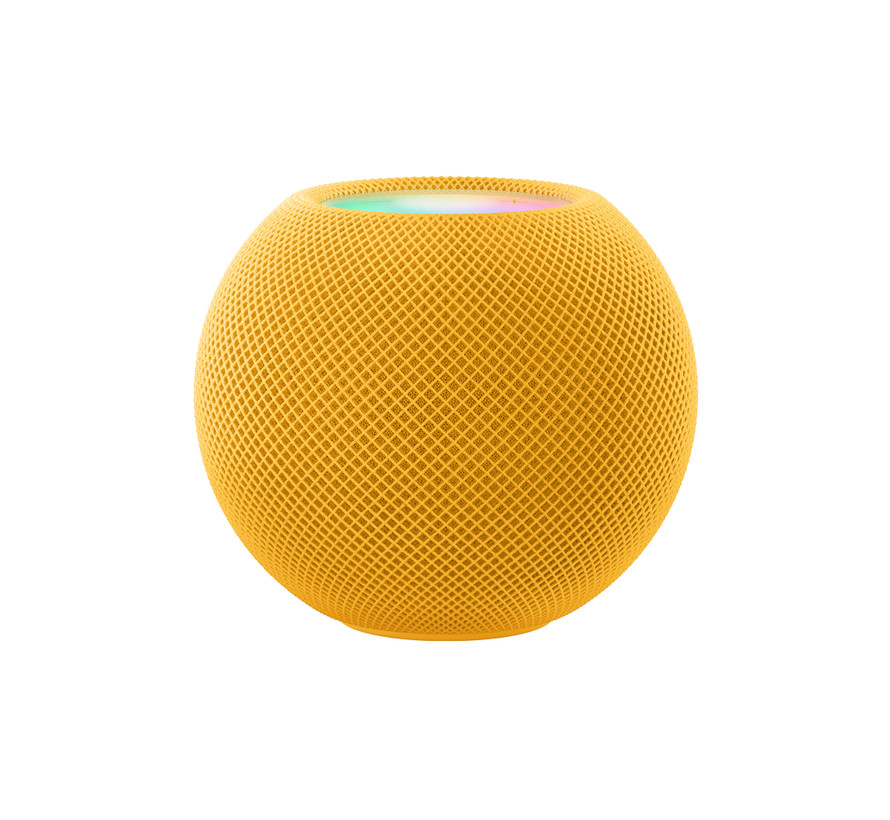
Apple HomePod mini
Best all-round Apple Home hub for Matter. The HomePod mini does triple duty as a Siri speaker, Thread Border Router, and Apple Home hub — all in a compact $99 package. Every HomePod mini running HomePod Software 16.3+ supports Matter natively. Highly recommended as your first hub.
- ✅ Built-in Thread Border Router
- ✅ Supports Matter natively
- ✅ Always-on hub (doesn't need a TV on)
- ✅ $99 — most affordable Apple hub option
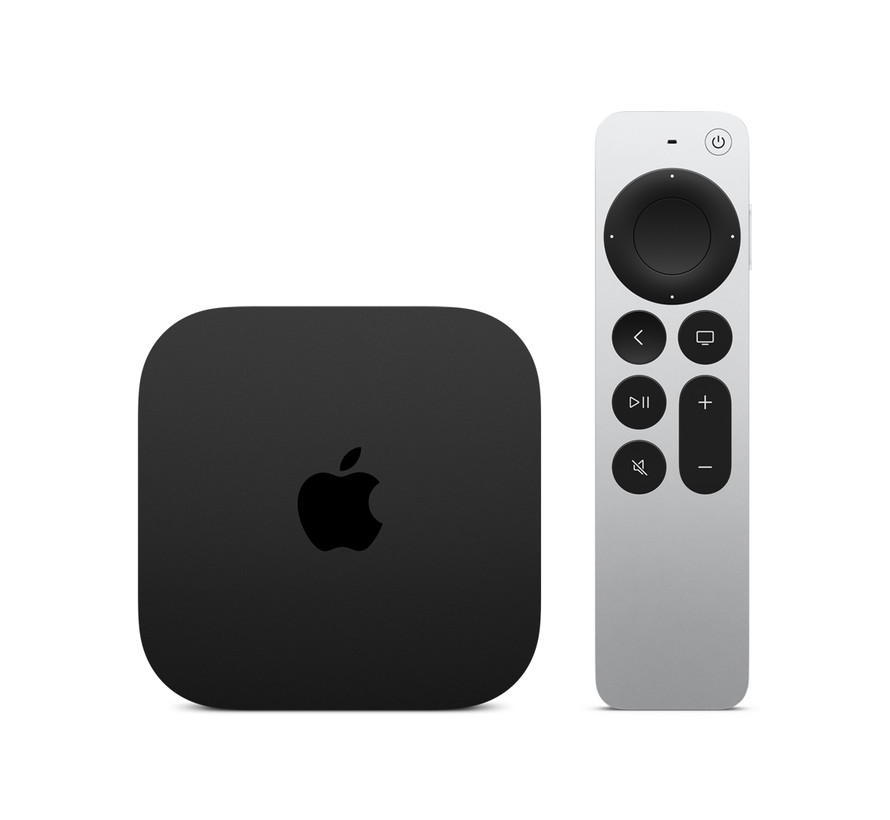
Apple TV 4K (3rd Generation)
Best Apple Home hub if you also want a streaming device. The Apple TV 4K (3rd gen, 2022 or later) acts as a full Apple Home hub and Thread Border Router while also being one of the best streaming boxes available. If you're already considering an Apple TV, this is the obvious dual-purpose pick.
- ✅ Full Apple Home hub + Thread Border Router
- ✅ Supports Matter natively (tvOS 16.2+)
- ✅ Doubles as 4K HDR streaming device
- ⚠️ Requires TV to be connected (but hub works even with TV off)
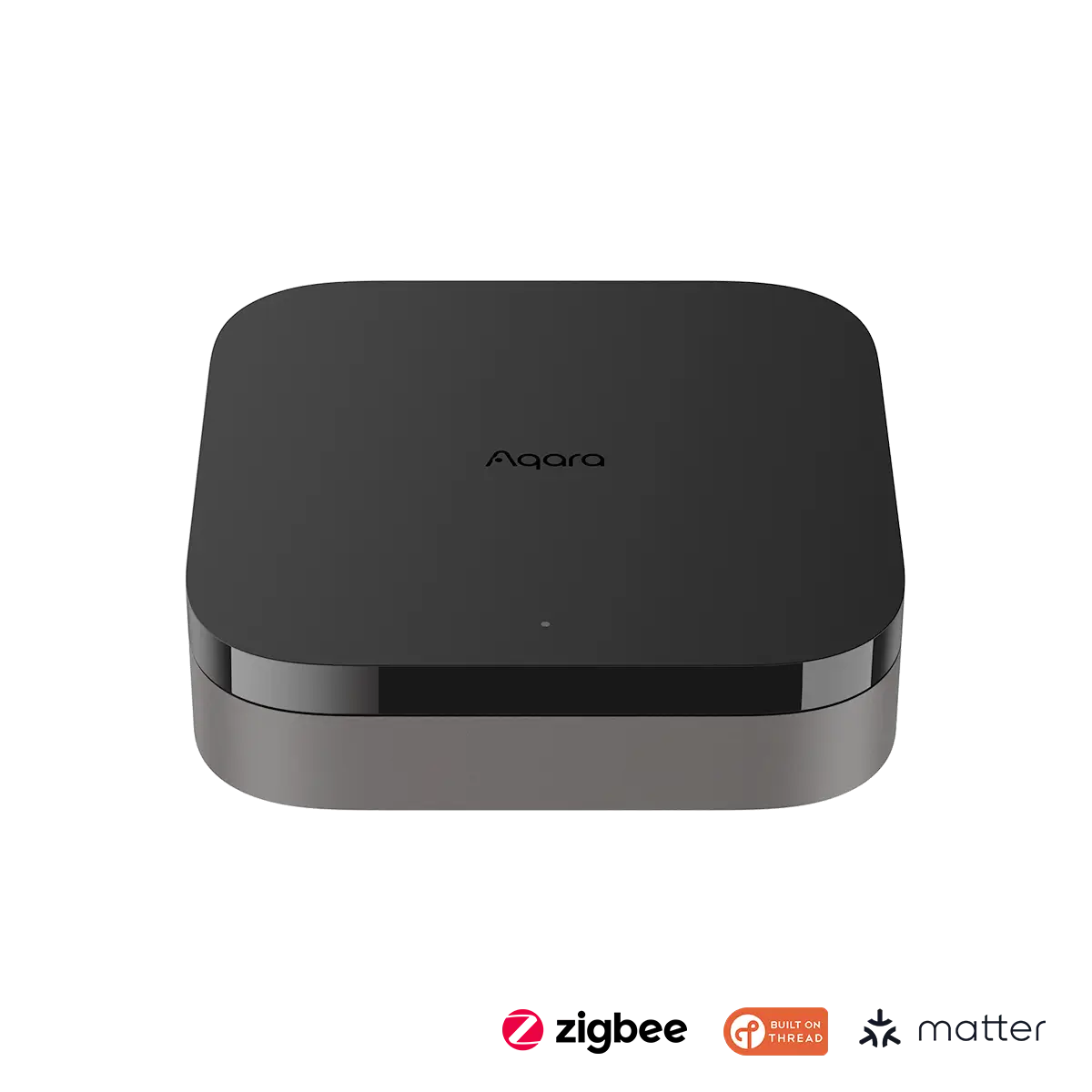
Aqara Hub M3
Best Matter bridge if you have non-Matter Zigbee/IR devices. The Aqara Hub M3 acts as a Matter bridge — it brings your existing Aqara Zigbee sensors, IR blasters, and accessories into Apple Home via Matter, without requiring each device to be natively Matter-certified. A great option if you have a mixed ecosystem.
- ✅ Matter bridge for Aqara Zigbee + IR devices
- ✅ Supports Apple Home, Google Home, Amazon Alexa
- ✅ Thread Border Router built-in
- ✅ Expands what can appear in Apple Home
Frequently Asked Questions
Do I need a hub to use Matter devices with Apple Home?
Yes. Unlike Google Home or Amazon Alexa (which can add Matter devices locally without a dedicated hub in some cases), Apple Home requires an active hub — HomePod mini, Apple TV 4K (3rd gen+), or iPad set as Home Hub — for Matter device commissioning and for remote access. Without a hub, the device will not appear or respond in Apple Home.
My Matter device shows up in Google Home but not Apple Home — why?
This almost always means Apple Home doesn't have an active hub, or the device is already fully commissioned to Google Home and hasn't been factory reset. A Matter device needs to be explicitly shared with additional controllers via Multi-Admin — it doesn't automatically appear in all apps. Factory reset the device if you want to move it to Apple Home, or use the Multi-Admin sharing feature to add it to Apple Home while keeping it in Google Home.
Why does Apple Home say "Unable to add accessory"?
This error usually means one of: (1) no hub is online, (2) the device was previously paired and needs a factory reset, (3) your iPhone is too far from the device during pairing (Bluetooth range issue), or (4) the device firmware needs updating before it can be commissioned. Work through the fix steps above in order.
Can I add a Matter device to Apple Home without being near it?
No. The initial Matter commissioning requires Bluetooth proximity between your iPhone and the device. Once commissioned, the device communicates over Wi-Fi or Thread through your hub — but the first pairing step physically requires you to be within Bluetooth range (typically 10–30 feet without walls).
What Matter device types does Apple Home support?
As of iOS 17 / HomePod Software 17, Apple Home supports: lights, switches, outlets/plugs, thermostats, door locks, sensors (contact, motion, temperature, humidity), window coverings, fans, air quality monitors, and more. Apple Home is generally fast to adopt new Matter device types. Check Apple's support pages for the latest compatibility list.
Does Apple Home support Thread devices?
Yes. HomePod mini and Apple TV 4K (3rd gen) both contain Thread Border Routers. Thread-based Matter devices (like many sensors and plugs) will connect via Thread rather than Wi-Fi when an Apple Thread Border Router is present on the network, offering better battery life and reliability.
Related Articles
More Matter Troubleshooting Guides
- 📖 Matter Device Not Responding Fix — Step-by-Step Guide
- 📖 Matter Device Keeps Disconnecting Fix Guide
- 📖 Matter Commissioning Failed Fix Guide
- 📖 Router Blocking Matter Devices — IPv6/mDNS Fix Guide
- 📖 Thread Border Router Explained + Setup Guide
- 📖 Matter Bridge Explained — What It Is and How to Set It Up