
Whether your Matter device stopped responding, got stuck during setup, or you’re passing it along to someone else — knowing how to reset a Matter device is one of the most useful troubleshooting skills you can have as a smart home owner.
A factory reset wipes the device’s configuration and returns it to factory defaults, ready to be commissioned fresh. Done correctly, it clears pairing data, removes it from your ecosystem, and solves the majority of persistent connection issues that simpler fixes can’t touch.
In this guide we cover every reset method — from the physical button hold, to removing a device from Apple Home, Alexa, and Google Home — plus how to recommission your device after the reset so it comes back online cleanly.
⚡ Quick Verdict
- Fastest method: Physical factory reset button (hold 10–15 sec until LED flashes)
- Cleanest method: Remove device from app first, THEN factory reset the hardware
- Most common mistake: Resetting the hardware without removing it from the hub app — causes ghost device entries
- After reset: Always re-commission through your hub app (Apple Home, Alexa, or Google Home)
- Pro tip: If factory reset fails, try a soft reset (power cycle) first — it solves ~40% of issues without wiping settings
When Should You Factory Reset a Matter Device?
Not every problem requires a factory reset. Here’s how to know when it’s the right move:
✅ Good Reasons to Factory Reset
- Device won’t re-pair after removal — old pairing data is stuck in the device’s memory
- Moving to a new hub or ecosystem — e.g., switching from Alexa to Apple Home
- Persistent “device unavailable” errors that survive reboots and app reinstalls
- Matter commissioning fails repeatedly — the QR code scans but pairing never completes
- Selling or gifting the device — always wipe before handing it over
- Device behaves erratically after a firmware update
❌ When You Probably Don’t Need to Reset
- Device is temporarily offline — check your router and hub first
- Single automation stopped working — edit the automation, don’t reset
- Device responds slowly — try a power cycle (unplug/replug) first
- Hub app shows wrong status — force-close and reopen the app
Method 1: Physical Factory Reset (Hardware Button)
The most universal method — works on virtually every Matter-certified device regardless of which hub or app you use.
Step-by-Step: Physical Reset
- Locate the reset button — Usually a small recessed button on the back, bottom, or side of the device. On some devices it doubles as the pairing button. Check your device’s manual if you can’t find it.
- Power the device on — Make sure it’s plugged in or has charged batteries.
- Press and hold the reset button — Hold for 10–15 seconds. On some devices you may need to hold up to 30 seconds.
- Watch for the LED indicator — The LED will typically flash rapidly, change color, or blink in a pattern to confirm the reset has started.
- Release the button — The device will reboot automatically. This takes 30–60 seconds.
- Wait for pairing mode — After reboot, the LED will pulse or blink slowly, indicating the device is in pairing mode and ready to be commissioned.
Method 2: Remove from Hub App First (Recommended)
The cleanest approach is to remove the device from your hub app before doing the hardware reset. This ensures no ghost entries are left behind in your smart home ecosystem.
Remove from Apple Home
- Open the Home app on your iPhone or iPad.
- Long-press the device tile until a menu appears.
- Scroll down and tap “Remove Accessory”.
- Confirm by tapping “Remove” in the dialog.
- Apple Home will attempt to factory reset the device automatically via the Matter protocol. If it succeeds, you’re done — no button hold needed.
- If it fails (device unreachable), proceed with the physical reset (Method 1).
Remove from Amazon Alexa
- Open the Alexa app on your phone.
- Tap Devices at the bottom.
- Find your device and tap on it.
- Tap the gear icon (Settings) in the top-right corner.
- Scroll down and tap “Deregister” or “Remove Device”.
- Confirm removal. Then perform the physical reset (Method 1).
Remove from Google Home
- Open the Google Home app.
- Tap on the device you want to remove.
- Tap the gear icon (Settings) in the top-right corner.
- Tap the three-dot menu (top-right) and select “Remove device”.
- Confirm. If Matter removal is successful, the device resets automatically. Otherwise proceed with the physical button reset.
Method 3: Reset via Manufacturer App
Some Matter devices have a companion app (Aqara Home, Eve for Matter, Meross, SwitchBot) that provides a factory reset option in the device settings:
- Open the manufacturer’s companion app.
- Navigate to the device settings.
- Look for “Factory Reset”, “Remove Device”, or “Restore to Defaults”.
- Confirm the action. The app will send a reset command to the device over the local network.
This method is particularly useful when the physical reset button is hard to reach (e.g., ceiling-mounted sensors, in-wall switches) or when you want a software-initiated reset that also clears cloud account associations.
Step-by-Step: Re-Commissioning After Reset
After a factory reset, your Matter device is in pairing mode — ready to be added to any Matter-compatible hub. Here’s how to recommission it:
- Open your hub app — Apple Home, Alexa, or Google Home.
- Tap “Add Accessory” or “Add Device” — In Apple Home tap the + icon; in Alexa tap Devices → + icon; in Google Home tap the + icon.
- Scan the QR code — Hold your phone’s camera over the Matter QR code on the device or packaging. It’s a square code labeled “Matter” or showing the Matter logo.
- If you’ve lost the QR code — Use the 11-digit numeric setup code printed on the device or in the manufacturer’s app.
- Follow the on-screen prompts — The app will find the device on your network and walk you through naming and room assignment.
- Wait for confirmation — Commissioning typically takes 1–3 minutes. The device’s LED will go solid or stop pulsing when it’s successfully paired.
- Test the device — Toggle it on and off from the app to confirm it’s responding correctly.
Troubleshooting: Reset Not Working?
If the factory reset doesn’t seem to take effect, try these steps:
- Hold longer — Some devices require holding the reset button for a full 30 seconds. A shorter press may only trigger a soft reset or pairing mode.
- Check power — Battery-powered devices may not complete a reset if the battery is low. Replace the battery first.
- Use manufacturer app — If the button method fails, try resetting via the companion app (Aqara Home, Eve, Meross, SwitchBot, etc.).
- Contact manufacturer support — Some firmware versions have known reset bugs. The manufacturer may have a specific reset sequence for your model.
- Check for stuck pairing window — If your device shows a pairing window error, see our guide: Matter Pairing Window Expired Fix.
Best Matter Hubs for Re-Commissioning After Reset
After a factory reset, you’ll need a Matter-compatible hub to recommission your device. Here are two of the best options available in 2026:
Apple HomePod mini — Best for Apple Home Users
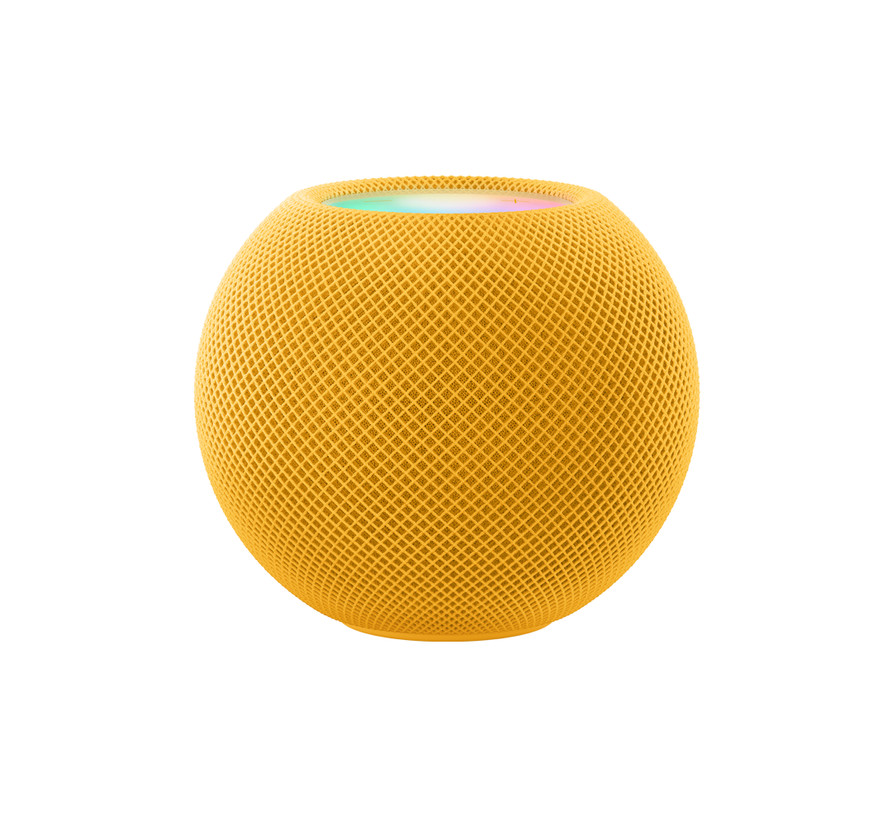
The Apple HomePod mini is the go-to Matter hub for anyone in the Apple ecosystem. It acts as a Thread Border Router and Apple Home hub, making it the ideal device to recommission Matter accessories after a reset. The HomePod mini also supports Wi-Fi-based Matter devices and handles local processing for fast, reliable control.
- ✅ Thread Border Router built-in
- ✅ Apple Home hub — local processing
- ✅ Matter 1.2+ compatible
- ✅ Works as a Siri speaker
- ⚠️ Apple ecosystem only — limited Android/cross-platform support
Price: ~$99 | Best for: iPhone/iPad/Mac users, Apple Home setups
Amazon Echo (4th Gen) — Best for Alexa Users
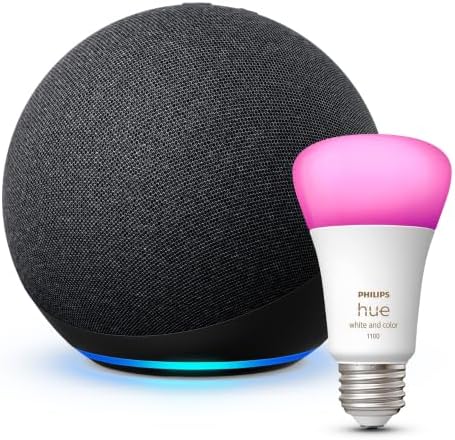
The Amazon Echo (4th Gen) is one of the most popular Matter controllers in the US market. Its built-in Zigbee hub and Alexa integration support a huge range of Matter-certified devices out of the box. After resetting a Matter device, simply say “Alexa, discover devices” or use the Alexa app to re-commission.
- ✅ Native Matter controller via Alexa
- ✅ Built-in Zigbee hub for legacy devices
- ✅ Voice-controlled recommissioning
- ✅ Works with Apple Home, Google Home via Matter multi-admin
- ⚠️ Not a Thread Border Router — Thread devices need a separate Thread hub
Price: ~$99 | Best for: Alexa users, mixed-protocol households
Frequently Asked Questions
Will a factory reset delete my automations?
Yes — a factory reset wipes all configuration from the device itself. However, automations stored in your hub app (Apple Home, Alexa, Google Home) may remain in the app but become inactive once the device is removed. After re-pairing, you’ll need to reassign those automations to the device.
Does resetting a Matter device remove it from all ecosystems?
A hardware factory reset removes the device’s pairing data. However, you should also manually remove it from each hub app you added it to — Matter supports multi-admin, meaning one device can be added to multiple platforms simultaneously. Remove from each app to avoid ghost entries.
My device reset but the LED won’t stop flashing — is it broken?
A slowly pulsing or flashing LED after reset is normal — it means the device is in pairing mode and waiting to be commissioned. Open your hub app and add it within 15–20 minutes before the pairing window closes. If the LED flashes rapidly for more than 5 minutes without settling, try a power cycle.
How long does a Matter factory reset take?
The physical reset button hold takes 10–30 seconds. After releasing, the device reboots into pairing mode in about 30–60 seconds. Full recommissioning through your hub app typically takes 2–5 minutes depending on network conditions.
Can I reset a Matter device without the original QR code?
Yes — check the manufacturer’s companion app (Aqara Home, Eve, Meross), which often stores the pairing code digitally. Some hubs also allow re-pairing using the 11-digit numeric setup code printed on the device alongside the QR code.
What’s the difference between a soft reset and a factory reset?
A soft reset (power cycle) restarts the device without wiping any data — like rebooting a computer. A factory reset erases all pairing data, Wi-Fi credentials, and configuration, returning the device to its out-of-box state. Always try a soft reset first — it solves many issues without requiring re-pairing.
My Matter device not showing up in Apple Home after reset — what do I do?
This is one of the most common post-reset issues. See our dedicated guide: Matter Device Not Showing Up in Apple Home — Complete Fix Guide. The most common causes are the pairing window closing too quickly, Bluetooth being off during commissioning, or the device being in the wrong Thread network.